
How to Change Folder Color in Windows 11 (and Windows 10)
العربيةShort answer: Windows 11 and Windows 10 have no general setting for folder color. The only built-in option is OneDrive’s Folder color command, which works on OneDrive folders only. To color any folder, use an app such as Folder Colors, which adds a color picker to the File Explorer right-click menu.
Folders in File Explorer are yellow, and Windows gives you no everyday way to change that. This guide covers what Windows does offer, where it stops, and the quickest way to color-code folders when you need more.
Method 1: The built-in Windows way (OneDrive only)
The one folder-color command in Windows comes from OneDrive. It shows up for folders that OneDrive manages, on Windows 10 and Windows 11. Make sure OneDrive is running, signed in and not paused.
Open your OneDrive folder
Press Win + E to open File Explorer, then open your OneDrive folder.
Right-click the folder
Choose OneDrive, then Folder color.
Pick a color and apply it
Select a color such as red and click Apply. Choosing the default yellow restores the normal look.
Know the limits before you rely on it:
- It works only on folders managed by OneDrive. A folder on
C:\Projectsoutside OneDrive does not get the option. - A non-default color replaces the folder’s thumbnail preview with a plain colored folder.
- Colors sync across devices for OneDrive for Business, school and SharePoint accounts, but not for personal OneDrive accounts.
- Some users report the command greyed out or missing. In that thread, one workaround is to set the color in OneDrive on the web, then let it sync back.
Is there a built-in color for other folders?
No. For a folder outside OneDrive, Windows offers only Properties → Customize → Change icon, which swaps the icon rather than coloring the folder, and works on one folder at a time. We cover it in How to Change a Folder Icon in Windows 11.
Method 2: Color any folder with Folder Colors
Folder Colors is a Windows 11 and Windows 10 app from the Microsoft Store. It adds color choices to the File Explorer right-click menu and does not depend on OneDrive. These steps follow the app’s own features.
Install the app
Get Folder Colors from the Microsoft Store using the button below, and open it once so it can finish setting up.
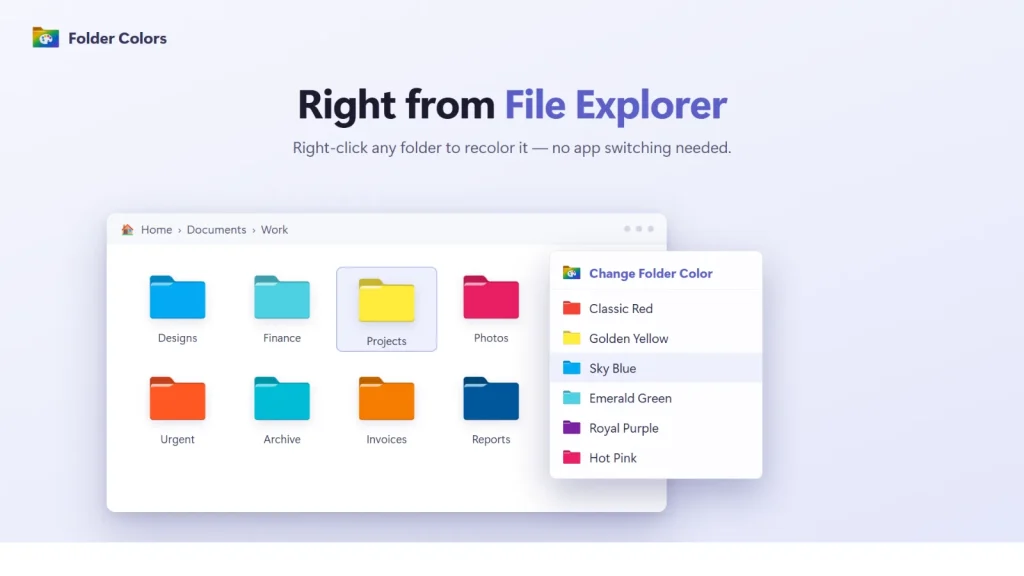
Right-click a folder
In File Explorer, right-click any folder. On Windows 11 the Folder Colors item sits in the top-level menu, so there is no need for Show more options.
Choose Change Folder Color
Pick one of the 40 built-in colors. The folder icon updates right away.
Color several folders at once
Select multiple folders, then right-click and choose a color once. All selected folders change together.
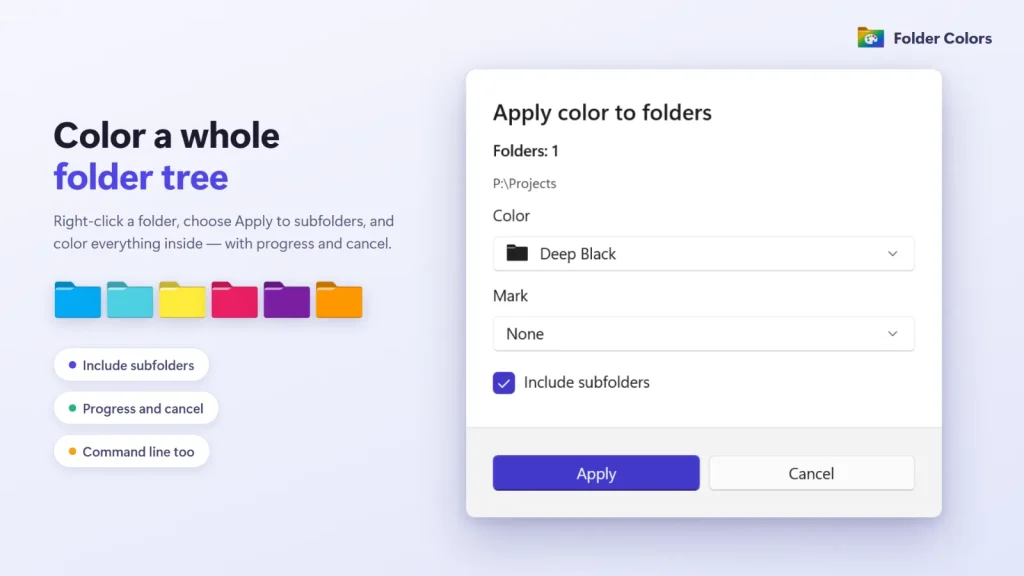
Color a whole folder tree
Choose a color for a parent folder and tick Include subfolders in the dialog that appears. A progress dialog shows while the app works through the tree.
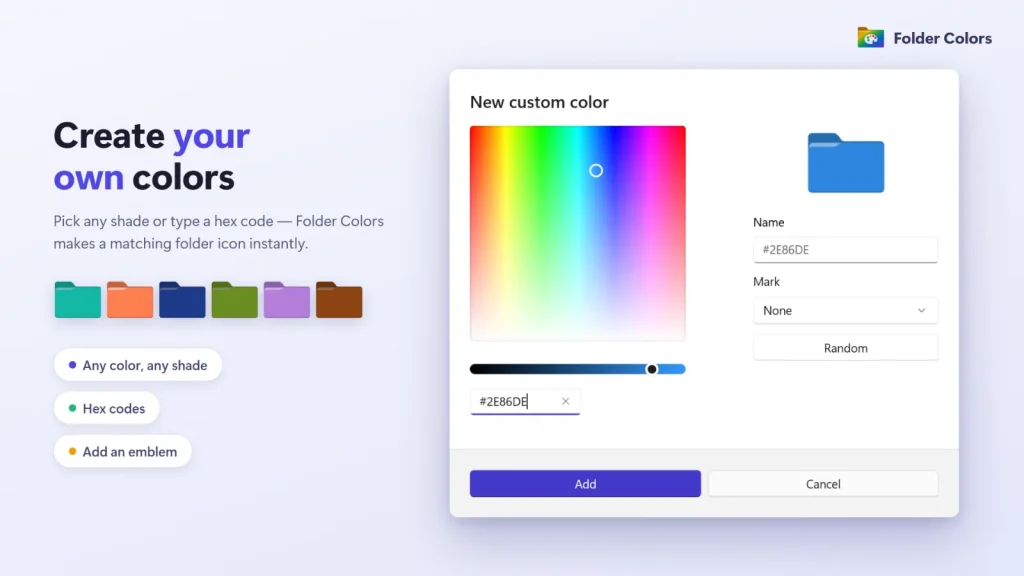
Make your own color
If none of the 40 colors fits, open the custom color dialog. It has a color picker and a hex code field, and the app generates a matching folder icon for light and dark themes.
Restore the default folder
Choose the restore option from the same right-click menu to bring back the original icon. To undo many folders, open the app’s My Folders tab and use Restore all.

Tips: Use a few colors with fixed meanings, for example red for urgent and green for done. The app also has four emblems (Checked, New, Wait and Error) that mark a folder’s status without changing its color. Right-click empty space to create a new folder that is already colored.
Troubleshooting
The color is not showing
Press F5 in File Explorer first. If the folder is still plain, open My Folders in the app and run Verify, then Repair all. This restores icons lost after copying or moving a folder.
Colors disappear in cloud-synced folders
Colors are stored as an icon entry in each folder’s desktop.ini file, and cloud services may not sync that file between PCs. Apply the color on each PC, or use Verify and Repair after a sync.
Icons vanished after a Windows security update
Microsoft says that since security updates released on or after June 9, 2026, Windows ignores a desktop.ini file it cannot trust, such as one downloaded from the internet or copied from certain remote locations. Custom icons then do not appear, while the folder’s contents stay accessible. We have not tested every case, so if a color stays missing, run Repair all and see Microsoft’s notice below.
How do I go back to normal?
Use the restore option on a single folder, or Restore all in My Folders. The folder returns to its original icon.
Sources: Eleven Forum: Change folder color in OneDrive on Windows 11; Microsoft Tech Community: Why I can’t change my folder color anymore; Microsoft Support: Custom folder icons might not appear after the June 2026 Windows security update.
FAQ
Can you change folder color in Windows 11 File Explorer?
Not in general. File Explorer has no color setting for ordinary folders. Microsoft’s only built-in folder colors are the OneDrive command, which works on OneDrive-managed folders, so for folders anywhere else you need a third-party app.
How do I change folder color without OneDrive?
Use an app that sets a folder’s icon. Folder Colors adds a Change Folder Color item to the right-click menu and works on any local folder, with no OneDrive involved. You can also change a folder’s icon by hand, but that gives you an icon, not a color.
Why did the folder color option disappear from my right-click menu?
The OneDrive color command is tied to OneDrive. Users on Microsoft’s forum report it greyed out or missing, and Microsoft has not posted a cause there. Check that OneDrive is running and not paused, or set the color in OneDrive on the web.
Will folder colors show on my other PC?
Not automatically. Colors are stored as a folder icon setting in a desktop.ini file, and cloud services may not carry that over. Apply the color again on the other PC, or use the repair tool in the My Folders tab.
Keep reading
Related guide: How to Change a Folder Icon in Windows 11
All guides: Guides
The app behind this guide
Folder Colors
Color-code folders in Windows File Explorer from the right-click menu.
- 40 built-in colors plus custom shades
- Emblems, multi-select and subfolders
- 51 languages, including right-to-left
US$14.99 + free trial