
File Engine: a fast, tabbed file manager for Windows 11 and 10
File Engine is a Windows 11 and Windows 10 file manager that replaces File Explorer’s everyday workflow with tabs, split view of up to four panes, instant search, a Space-bar Quick Look preview and undo for file operations. It is a paid app with a free trial, and it needs no account.

Free trial US$14.99 one-time (US store; prices vary by region)
- No account
- No ads
- No tracking
- Your files stay on your PC
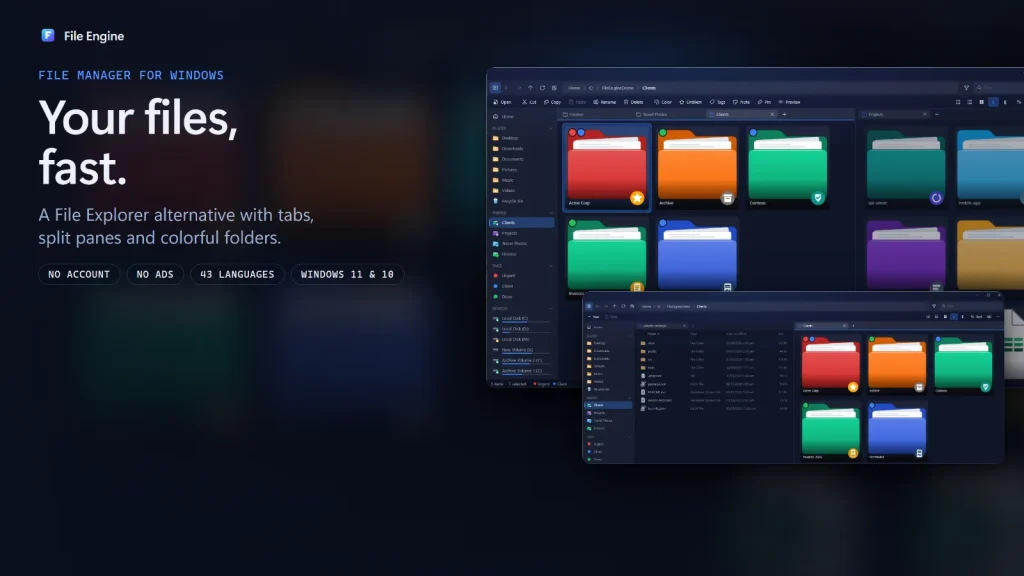
What can File Engine do that File Explorer can’t?
File Engine adds split view with up to four panes, a Ctrl+P Quick Open palette, instant search, a Space-bar Quick Look preview, undoable background copying, archives that open as folders, folder colors, emblems and tags, and profiles with a password-protected backup. Windows 11 File Explorer does have tabs, added in the October 2022 update to version 22H2, so tabs alone are no longer the reason to switch.
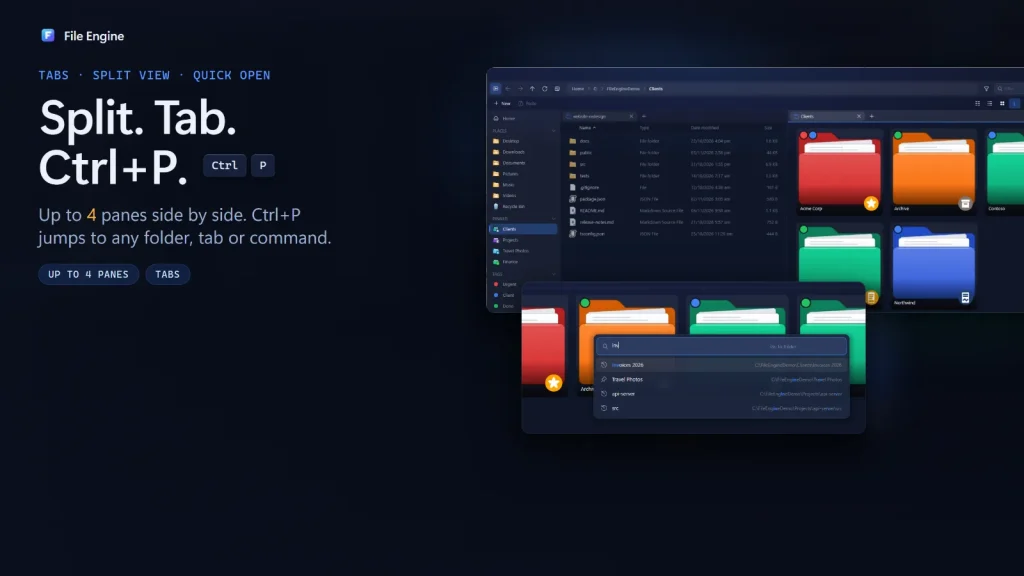
A file manager with split view, up to four panes
Open folders in tabs, reopen a closed tab with Ctrl + Shift + T, and have your tabs restored when you start the app. Drag a tab to the side and a drop guide shows where the new pane will go. Use two panes like a classic dual-pane manager, or go back to a single window.
Save a whole setup as a named workspace and restore it later. Ctrl + P opens Quick Open, which jumps to any folder, tab or command and ranks results by how often you use them.
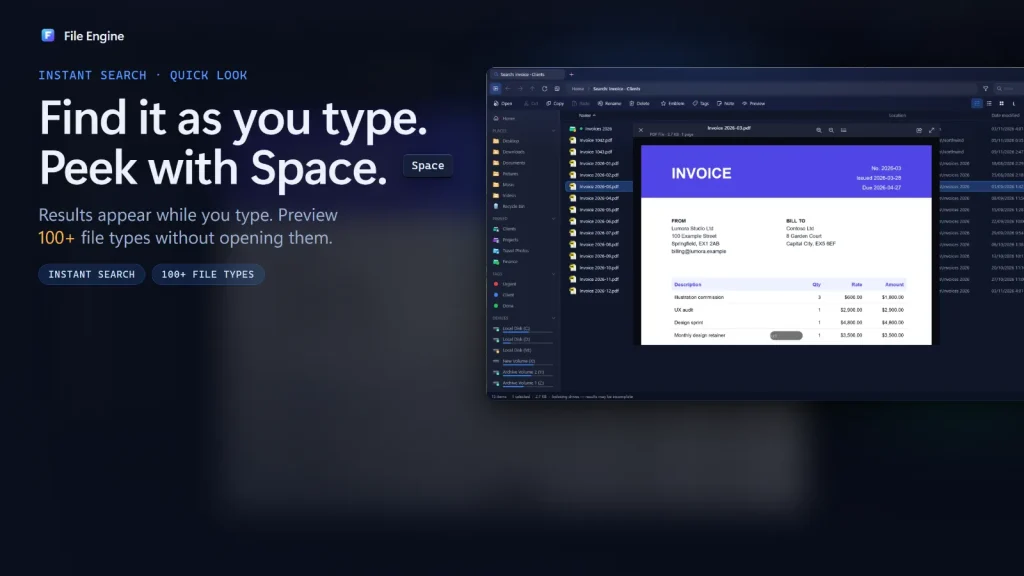
Instant file search and a Quick Look preview
Search starts as you type, in the current folder, a drive or all drives, using a low-memory index. Filter chips narrow results to images, documents, videos or code, and a flatten view shows a whole folder tree as one list.
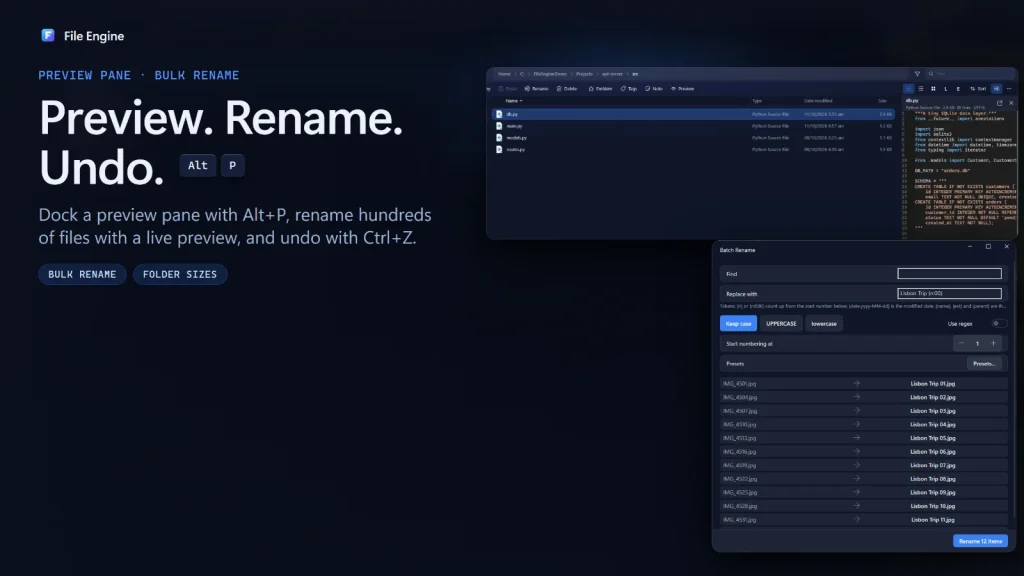
Select a file and press Space to preview it without opening an app. Quick Look covers more than 100 file types, including PDF, Word, Excel, PowerPoint, images, video, audio, code and archives. Alt + P docks the preview as a pane.
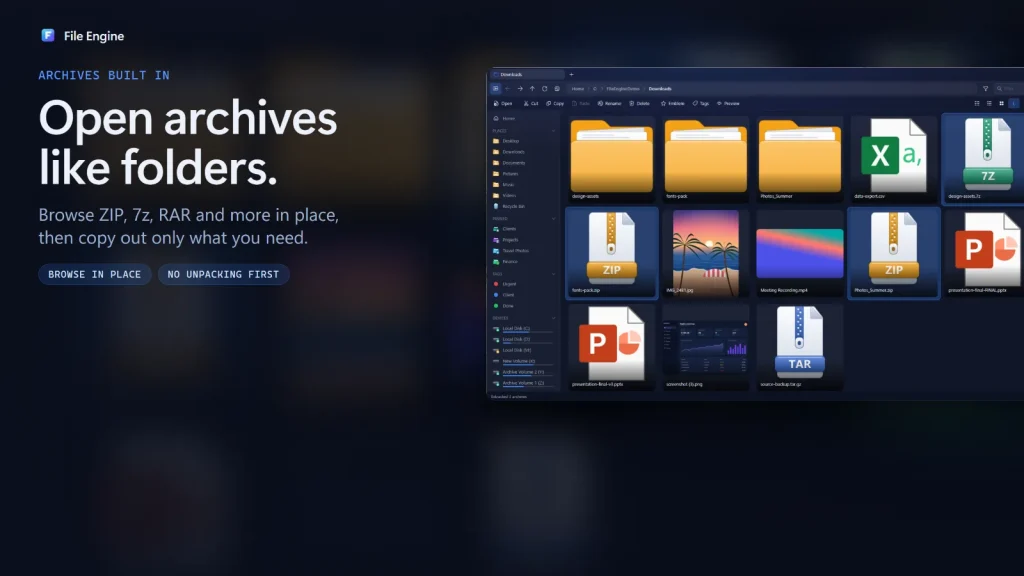
Open ZIP, 7z and RAR files like folders
ZIP, 7z, RAR, TAR, GZ and CAB archives open like normal folders, so you can browse them without extracting first. You can extract many archives at once, and create password-protected 7z archives with AES-256 encryption.
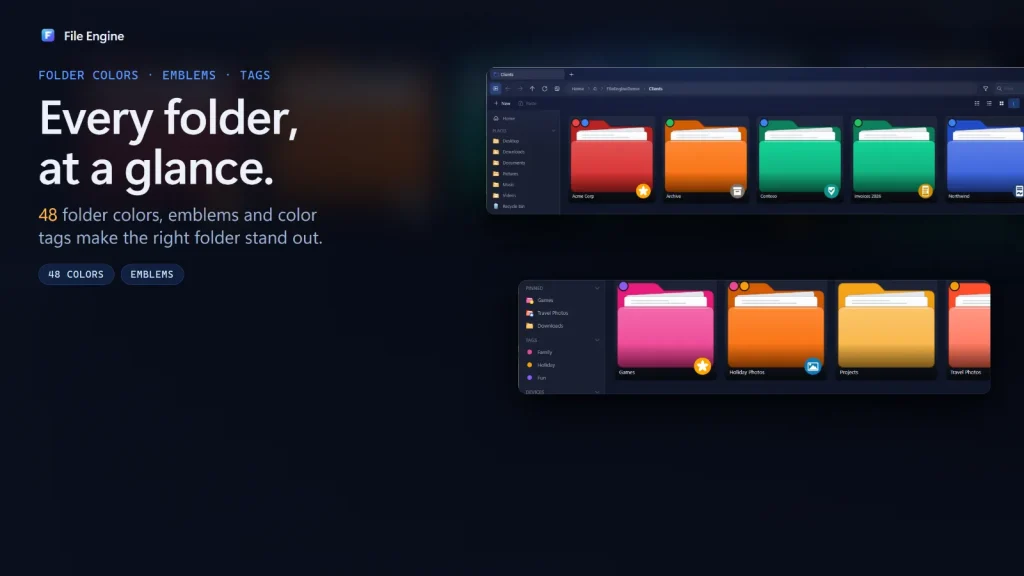
Color folders, emblems and tags that follow your files
File Engine includes 48 folder colors and emblems, such as Invoice, Contract, Urgent and Project, and can use a picture as a folder icon. Color tags and notes follow your files, so important items stay easy to spot in a long list.
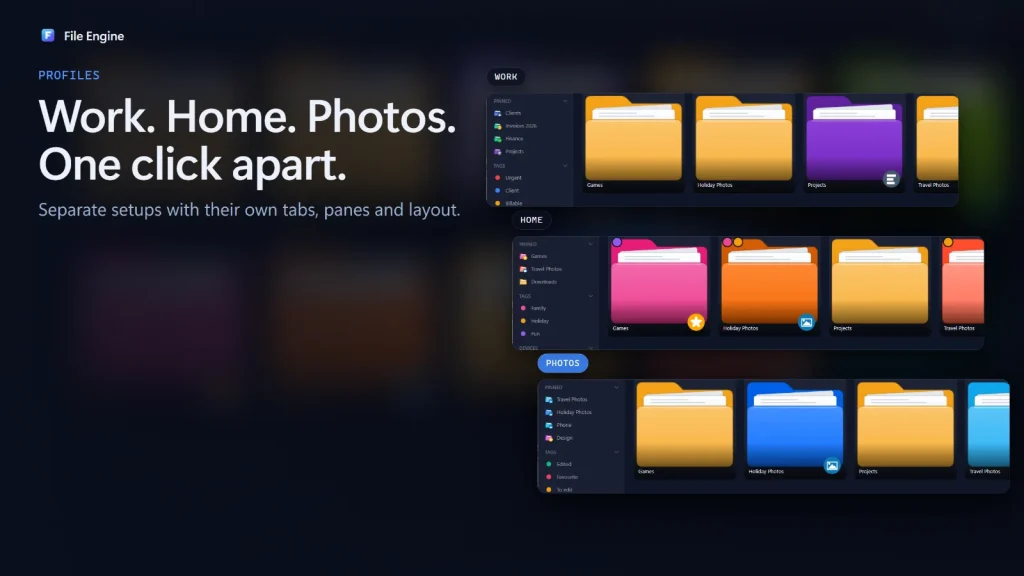
Separate profiles for work, home and photos
Each profile keeps its own settings, pinned folders, tags and views. You can back up a profile to a single password-protected file and restore it later.
Everyday file work, made faster
Copy and move with undo
Multithreaded copy and move with live progress and a background queue. Choose replace, skip or keep both on conflicts. Ctrl + Z undoes moves, copies, renames and deletes.
Bulk rename
Rename many files at once and watch a live preview of the new names before you apply them.
Folder sizes and drive usage
Folder sizes appear in the Size column, drives show usage bars, and File Engine can show which app is holding a file that is in use.
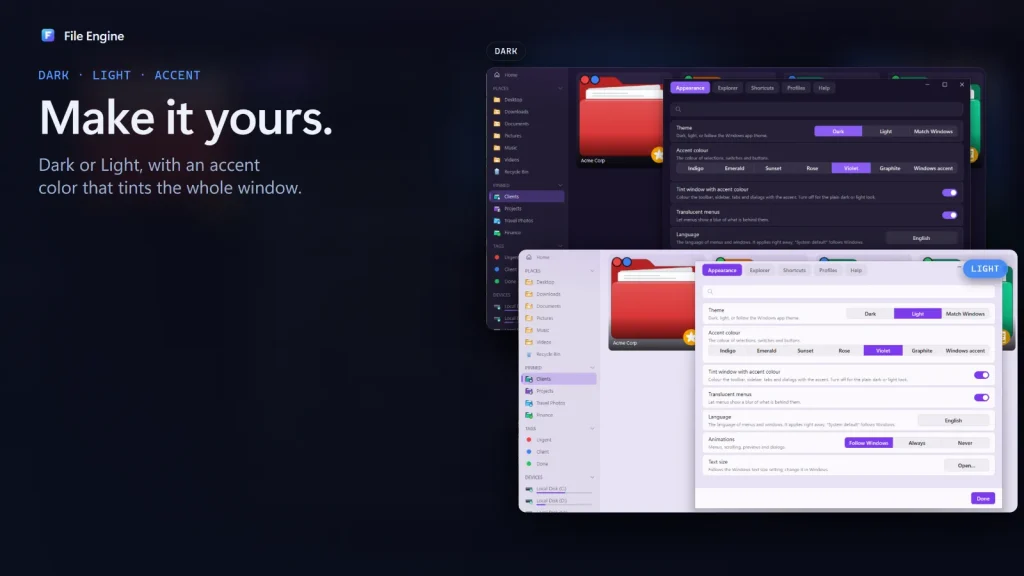
Dark and light themes
Switch between dark and light themes, with an accent tint across the whole window.
Configurable right-click menu
Choose which commands appear in the right-click menu so the ones you use are close at hand.
Long paths and OneDrive
Long file paths are supported. OneDrive availability is shown, and nothing downloads until you open the file.
File Engine keyboard shortcuts
The shortcuts named in the Microsoft Store listing.
| Shortcut | What it does |
|---|---|
| Ctrl + P | Quick Open: jump to any folder, tab or command |
| Space | Quick Look preview of the selected file |
| Alt + P | Dock the preview pane |
| Ctrl + Z | Undo a move, copy, rename or delete |
| Ctrl + Shift + T | Reopen a closed tab |
How do I get started with File Engine?
Install it from the Microsoft Store, try it free, and take the short welcome tour. You do not need to create an account.
Get it from the Microsoft Store
Open the listing, choose the free trial, and install on Windows 11 or Windows 10 (version 1809 or later). One purchase covers up to ten of your Windows devices.
Take the welcome tour
The tour takes about a minute and shows tabs, split view and Quick Open.
Open folders in tabs, then split
Drag a tab to the side of the window to open another pane, up to four.
Jump and preview
Press Ctrl + P to jump to a folder, and Space to preview a file.
Optional: make it your default folder app
File Engine can be set as the default folder app, so Win + E and folder links open in it. This is optional.
File Engine vs File Explorer, Files, OneCommander and Total Commander
A dash (—) means we have not verified that point, not that the answer is no. File Explorer, Files and OneCommander are free for personal use, so File Engine’s price is a real trade-off.
| Feature | File Engine | Windows File Explorer | Files | OneCommander | Total Commander |
|---|---|---|---|---|---|
| Price | US$14.99 one-time (US store), free trial | Built in, free | Free, open source | Free for personal use; Pro US$30 lifetime for professional or commercial use | Shareware, 30-day trial; EUR 42 plus VAT per license |
| Tabs | Yes | Yes (Windows 11 22H2 update, Oct 2022) | Yes | Yes (persistent) | — |
| Dual or split panes | Yes, up to four panes | — | Yes | Yes, dual pane | Yes, dual pane |
| Space-bar preview | Yes, 100+ file types | — | — | Yes | — |
| Undo file operations | Yes | — | — | — | — |
| Archives open as folders | Yes (ZIP, 7z, RAR, TAR, GZ, CAB) | — | — | — | — |
| Tags | Yes | — | Yes | — | — |
| Bulk rename | Yes, live preview | — | — | Yes, regex rename | — |
Sources and limits: File Engine facts come from its Microsoft Store listing (US, read 11 November 2026). Competitor facts come from onecommander.com, ghisler.com/order.htm, the Files project on GitHub, TechSpot (2022) and Windows news coverage of the Oct 2022 Explorer tabs update; prices and features may have changed. File Engine runs on Windows only, is a new app (version 1.0, no reviews yet), and its interface is not available in Arabic.
Which of our apps do I need?
Pick File Engine to manage files faster. Pick Folder Colors or Folder Icon Pro if you only want to restyle folders in File Explorer, or WidgetNest for desktop widgets.
Folder Colors
Color your folders in File Explorer so the important ones stand out.

Folder Icon Pro
Turn any image into a folder icon from the right-click menu.

WidgetNest
Desktop widgets and themes for Windows 11 and 10.
Is File Engine private?
The Microsoft Store listing says: “No account, no ads, no tracking. Your files stay on your PC.” You sign in to your Microsoft account only to install from the Store and to cover up to ten devices. File Engine is a full-trust desktop app, so the Store lists that it uses all system resources, as a file manager needs to. Read the Application Privacy Policy for details, or visit Support.
File Engine questions
How much does File Engine cost, and is there a free trial?
File Engine has a free trial and costs US$14.99 in the US Microsoft Store. It is shown as a one-time purchase, with no subscription listed. Prices vary by region, so check the Store listing for your country.
Which Windows versions and devices does File Engine support?
File Engine runs on Windows 11 and Windows 10 version 1809 (build 17763) or later, on PC. You can install it on up to ten Windows devices signed in to your Microsoft account. There is no macOS or Linux version.
Does File Engine work on Windows 10?
Yes. The Store listing supports Windows 10 version 1809 or later as well as Windows 11.
Does File Engine replace File Explorer?
It runs alongside it. File Engine can optionally be set as your default folder app, so Win+E and folder links open in it, but that is your choice and File Explorer stays on your PC.
Does File Engine track me or need an account?
No. The listing says: “No account, no ads, no tracking. Your files stay on your PC.” A Microsoft account is used only by the Store to install the app and manage your ten-device license.
Which archive formats can File Engine open?
ZIP, 7z, RAR, TAR, GZ and CAB archives open like folders, and you can extract several at once. You can also create password-protected 7z archives with AES-256 encryption.
Can I undo a file move or delete?
Yes. Press Ctrl+Z to undo moves, copies, renames and deletes made in File Engine.
What are profiles, and how do I back them up?
A profile keeps its own settings, pinned folders, tags and views, for example one for work and one for home. You can back up a profile to a single password-protected file.
Which languages does File Engine support?
The Store listing says File Engine is available in 43 languages. Arabic is not available in the app interface yet; only the Store listing is in Arabic.
How do I uninstall File Engine?
Uninstall it like any Microsoft Store app, from Settings, then Apps, then Installed apps. If you made it your default folder app, File Explorer remains available.
File Engine at a glance
| Developer | Muharrik Albarmajyat Establishment, Riyadh |
|---|---|
| Category | Utilities & tools |
| Platform | Windows 11 and Windows 10 (version 1809 or later), PC |
| Version | 1.0 (released 10 November 2026) |
| Price | US$14.99 (US store; prices vary by region) · free trial |
| Devices | Up to 10 Windows devices |
| Languages | 43 (not including Arabic in the app interface) |
| Age rating | Everyone |
| Size | About 27.7 MB |
| Privacy | No account, no ads, no tracking. Your files stay on your PC. |
| Get it | Microsoft Store |
| Page updated | November 2026 |
