
How to Change a Folder Icon in Windows 11
العربيةShort answer: Right-click the folder, choose Properties, open the Customize tab, click Change Icon, browse to an .ico file and press OK. That works on one folder at a time and needs an icon file. To use a PNG or JPG, or to change many folders, use an app such as Folder Icon Pro.
A custom folder icon helps you spot the right folder at a glance. Windows can do it, but only one folder at a time and only with an icon file. Below are the built-in steps, then a faster way when you want to use pictures or change many folders.
Method 1: Change the icon with Windows Properties
You need an .ico file, or an icon library such as a .dll or .exe that contains icons. Save the icon in a permanent place, because Windows points to it rather than copying it.
Open the folder’s Properties
Right-click the folder and choose Properties, or select it and press Alt + Enter.
Open the Customize tab
Switch to Customize and, under Folder icons, click Change Icon. Some Windows 11 guides label the button Choose Icon.
Browse to your icon
Click Browse, select the
.icofile or icon library, then pick the icon you want from the list.Confirm
Click OK in both windows. If the old icon lingers, press F5 in File Explorer.
Restore the default icon
Go back to Change Icon
Open Properties → Customize → Change Icon again.
Restore Defaults
Click Restore Defaults, then OK.
What to know about the built-in method
- It handles one folder at a time, and picking the same icon for 30 project folders means repeating the steps 30 times.
- Windows 11 expects an
.icofile, so a PNG or JPG must be converted first. - In Windows 11 build 22557 and later, a custom icon replaces the thumbnail preview File Explorer normally shows on the folder.
- Windows stores the choice in a hidden
desktop.inifile inside the folder.
Method 2: Change folder icons with Folder Icon Pro
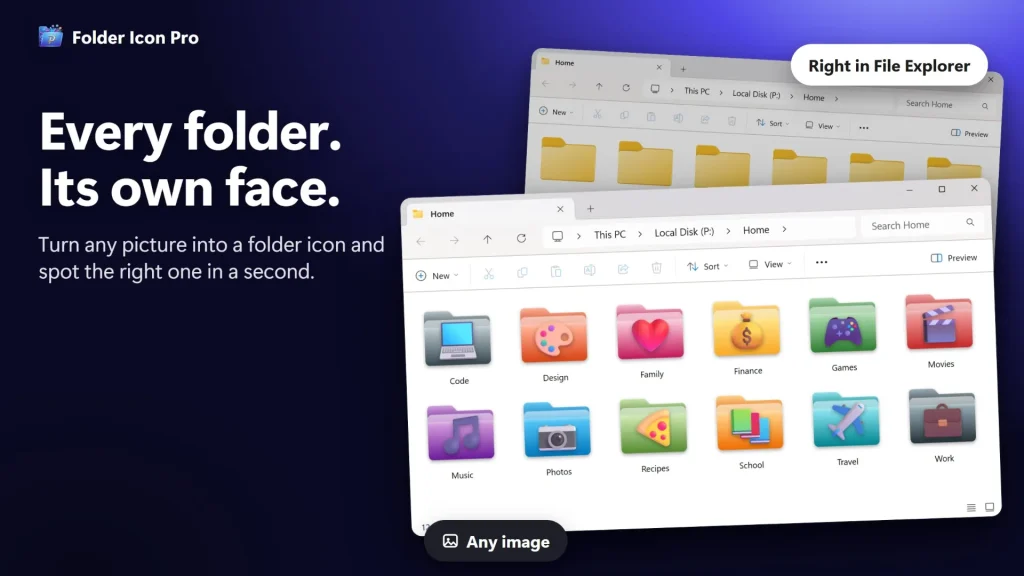
Folder Icon Pro is a Windows 11 and Windows 10 app from the Microsoft Store. It converts images into folder icons and puts the choice in the File Explorer right-click menu, so you do not open the app each time. These steps follow the app’s listed features.
Add your images
Open Folder Icon Pro and drag images into it, click Add Image, or paste from the clipboard. It accepts PNG, JPG, SVG, ICO, BMP, GIF, WEBP, TIFF, AVIF, HEIC and DDS, and makes each icon crisp at the sizes Windows uses.
Edit the icon if you want
The Icon Editor shows a live preview. You can place a photo or logo on a folder style, zoom, move and rotate it, add text, and choose a transparent or colored background.
Right-click a folder
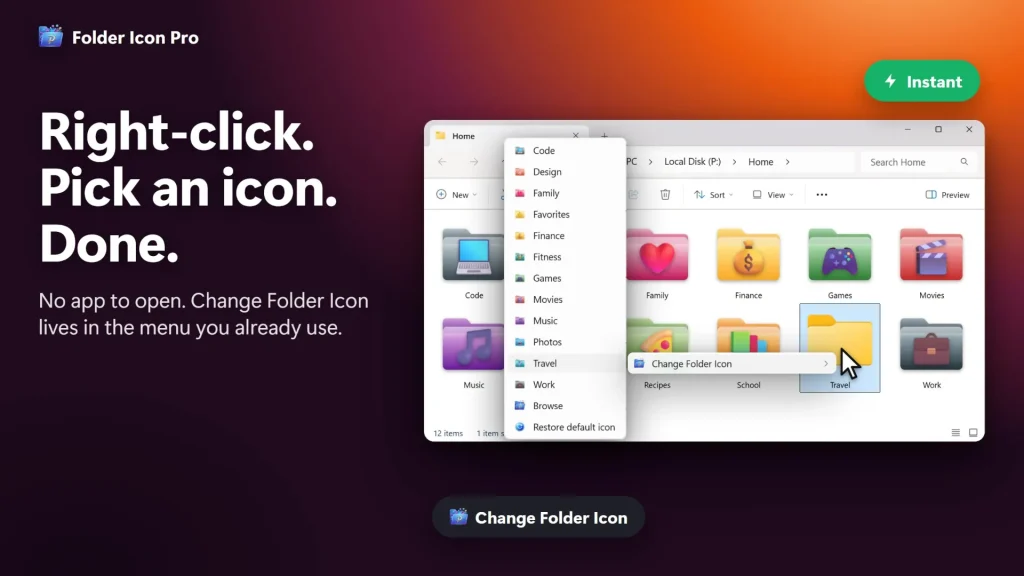
In File Explorer, right-click the folder and choose Change Folder Icon. Pick an icon from the gallery in the menu, and the folder changes straight away. The menu can show up to 40 icons of your choosing.
Use Browse for the full window
Choose Browse to open the Apply to Folders window, where you can pick any icon in your library and apply it to many folders, including subfolders, in one go.
Restore the default icon
Use the restore default command on one folder, or select several folders and restore them together. Folder names and the files inside stay unchanged, because only the icon is replaced.

Tips: Edit an icon once and every folder that uses it updates. Right-click empty space and choose Create New Folder to make a folder that already has an icon, or Collect into New Folder to move selected files into one. The Backup command saves your icons and folder assignments to a .bakfip file you can restore on a new PC.
Troubleshooting
My icon is not showing
Press F5 to refresh. With the built-in method, check that the .ico file is still where you left it, since moving or deleting it breaks the link. Also check that the folder is not inside a synced cloud folder that skips desktop.ini.
Icons vanished after a Windows security update
Microsoft says that since the security updates of June 9, 2026, Windows ignores a desktop.ini it cannot trust, so custom icons and localized folder names do not appear while the folder itself stays accessible. Typical triggers are a Mark of the Web from an internet download, some remote or WebDAV locations, and network paths outside trusted zones. Microsoft’s main fix is adding the source to Trusted Sites. We have not tested Folder Icon Pro against every case, so we make no claim about it beyond this note.
Icons are missing after copying to another PC or cloud folder
Icons live in each folder’s desktop.ini, and the icon file must be reachable too. Copy a folder with its desktop.ini and icon, or reapply the icon on the new PC. In Folder Icon Pro, restore a backup to bring your set across.
Sources: Eleven Forum: Change Folder Icon in Windows 11; Microsoft Support: Custom folder icons might not appear after the June 2026 Windows security update.
FAQ
How do I change a folder icon in Windows 11?
Open the folder’s Properties, go to the Customize tab, click Change Icon, browse to an .ico file or an icon library and confirm with OK. Windows applies the icon to that one folder. Without an icon file, an app such as Folder Icon Pro can create the icon from an image.
Can I use a PNG or JPG as a folder icon?
Not directly in Windows, which expects an .ico file or an icon library. Convert the picture to .ico first, or use Folder Icon Pro, which turns PNG, JPG, SVG, WEBP, HEIC and other image formats into folder icons for you.
How do I restore the default folder icon?
Open Properties, go to Customize, click Change Icon, then Restore Defaults and OK. In Folder Icon Pro, use the restore default command on the folder, or on many folders at once.
Why did my custom folder icons disappear?
Common causes are a moved or renamed icon file, a folder copied without its desktop.ini, or Windows ignoring an untrusted desktop.ini. Microsoft says this last case applies to security updates from June 9, 2026 onward, for example with a Mark of the Web.
Keep reading
Related guide: How to Change Folder Color in Windows 11 (and Windows 10)
All guides: Guides
The app behind this guide

Folder Icon Pro
Turn any image into a folder icon from the File Explorer right-click menu.
- PNG, JPG, SVG, HEIC, WEBP and more
- Icon editor with text and backgrounds
- Bulk apply, subfolders and backup
US$14.99 + free trial