
WidgetNest: desktop widgets for Windows that match your wallpaper
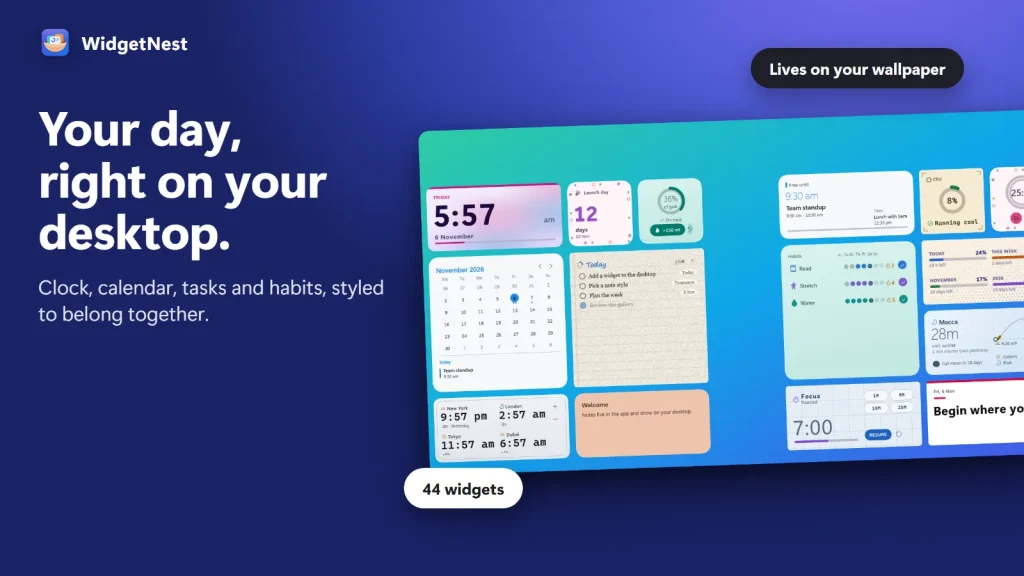
WidgetNest is a Windows 11 and Windows 10 app that puts 44 desktop widgets (clock, calendar, todo, habits, timers and system monitors) directly on your wallpaper, styled together with 18 themes or a theme built from your own picture. No account, no ads, no tracking.

- Works offline
- No ads
- No account
- No tracking
- Free trial
How is WidgetNest different from the Windows 11 Widgets board?
The Windows 11 Widgets board is a panel you open from the taskbar, with a news feed from MSN. WidgetNest puts widgets on the desktop itself, behind your windows, and styles them as one set. It has no feed, no ads and no account.
On your desktop, not in a panel
Drag each widget where you want it, resize it between sizes and right-click to edit. Widgets sit on the desktop layer behind your windows. Use the tray icon to bring them all to the front, then send them back.
One look for everything
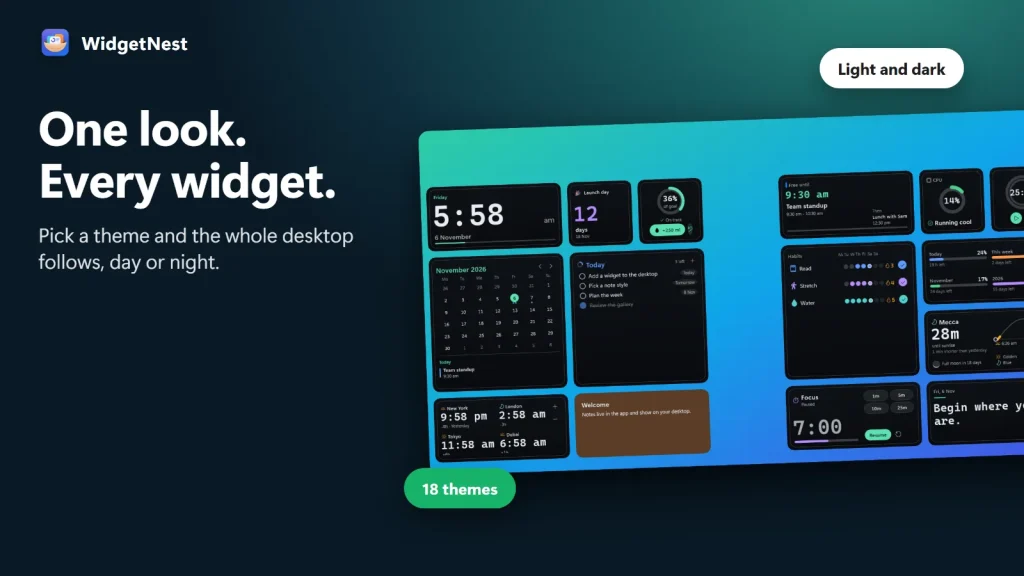
Pick a theme and every widget follows it in light or dark. Or let WidgetNest build a theme from your wallpaper. The built-in board does not offer this.
Your data stays on your PC
Tasks, notes and habits are stored on your PC. The built-in board has shown an MSN news feed with ads, and Microsoft has been testing turning that feed off by default. WidgetNest has no feed and shows no ads.
Which desktop widgets does WidgetNest include?
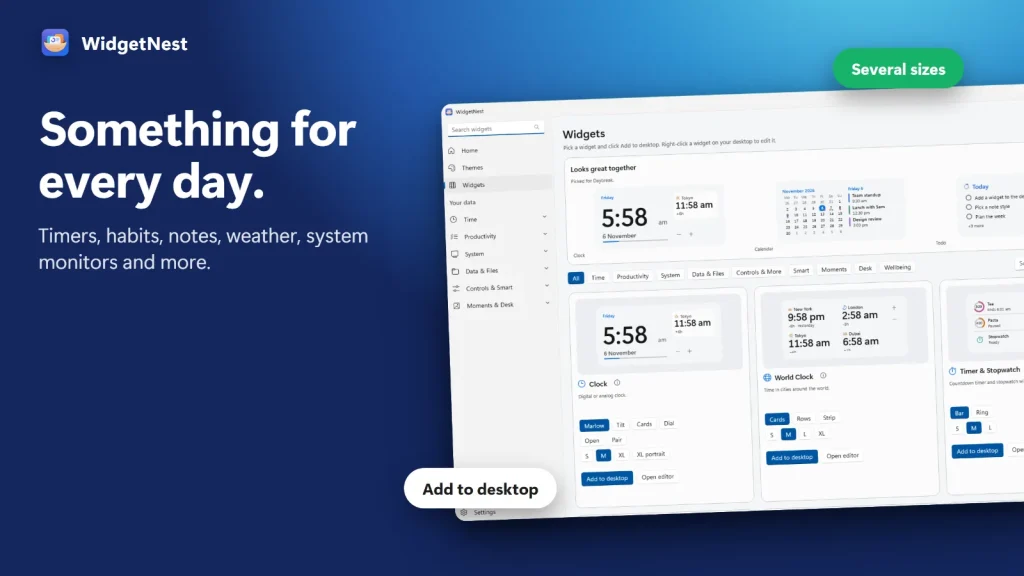
WidgetNest includes 44 widgets, each in several sizes and styles. These are the ones named in the Microsoft Store listing, grouped by purpose, and there are more beyond this list.
Time
Clock, World Clock, Date (with a second calendar), Calendar, Countdown, Alarm, Timer & Stopwatch, Sun & Moon and Prayer Times.
Plan
Todo, Reminders, Note, Habits (with streaks), Counter, Day Timeline, Next Meeting and Today Summary.
Focus & wellbeing
Pomodoro, Break Timer, Eye Break, Breathe, Water and Mood.
System
CPU, Memory, Network, Disk Space, Battery and a System overview.
Desk & moments
Photo Frame, Progress, Daily Line, Ambient, Shortcuts, Launcher, Flashcards, Converter, Calculator and more.
Several sizes and styles per widget
In the gallery, the Clock comes in styles such as Marlow, Tilt, Cards, Dial, Open and Pair, the World Clock as Cards, Rows or Strip, and the Timer as Bar or Ring. Add a widget in one click, then place it by dragging.
How do WidgetNest themes work?
WidgetNest ships 18 hand-made themes, such as Daybreak, Terminal Amber and Sunday Pastel. Every widget follows the theme you choose, in light and dark, and you can override the look of a single widget.
Theme schedules
Schedule themes so your desktop is bright by day and calm in the evening. WidgetNest also follows Windows light and dark mode.
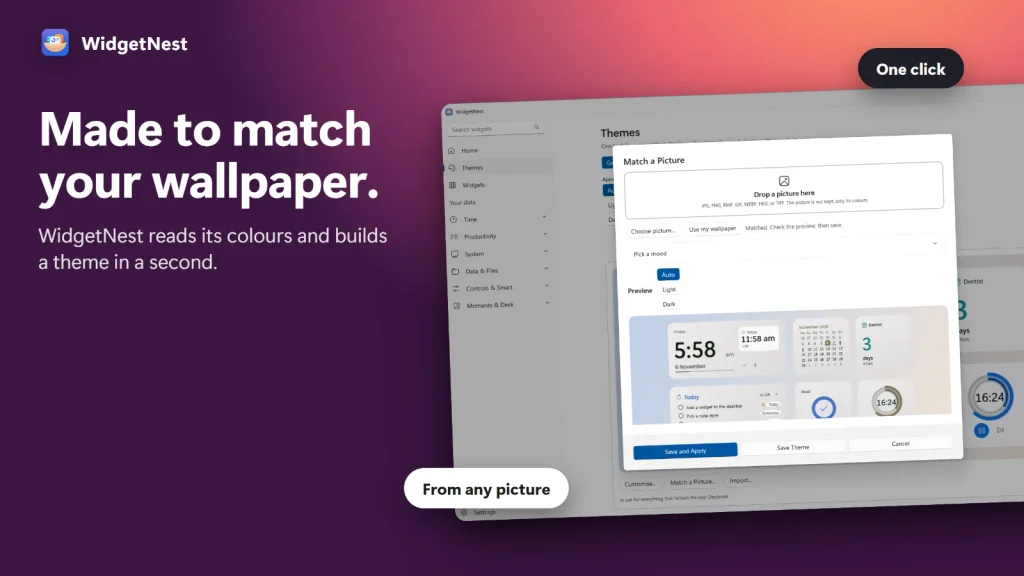
Match a Picture
Drop in a photo or use your current wallpaper and WidgetNest builds a matching theme in a second. Preview it on a mock desktop, then save it or apply it everywhere. The app accepts JPG, PNG, BMP, GIF, WEBP, HEIC and TIFF, and keeps only the colours, not the picture.
Theme Studio
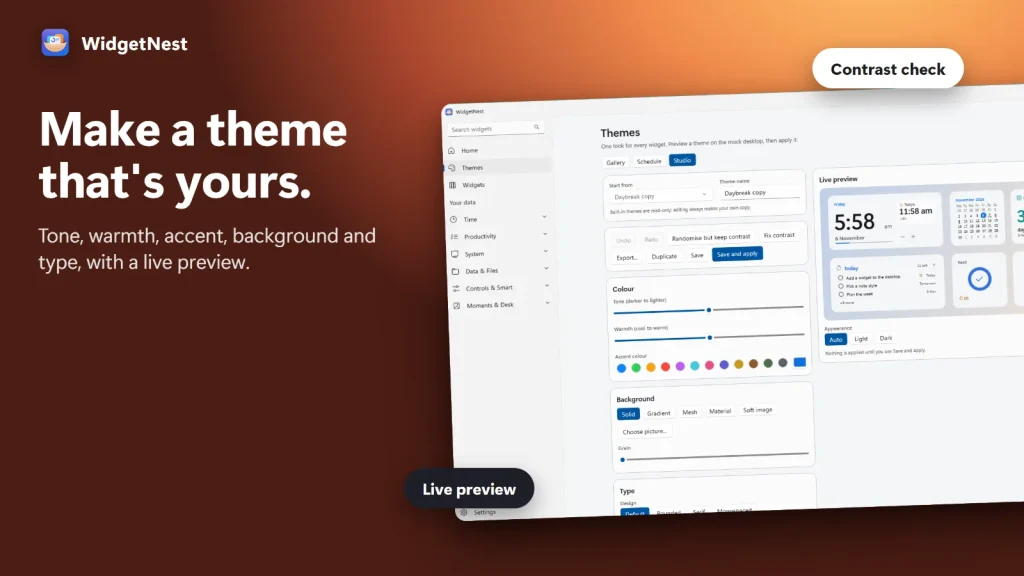
Fine-tune tone, warmth, accent colour, background (Solid, Gradient, Mesh, Material or Soft image), grain and type with a live preview and a contrast check. Export a theme as a .widgetnesttheme file and import it on another PC.
Can I back up my widgets and settings?
Yes. WidgetNest backs up everything to one file, and you can turn on optional automatic backups. It also offers sample data so you can try the widgets before adding your own.
Multi-monitor
Place widgets on any of your monitors.
Tray app
WidgetNest runs from the tray, with an optional start with Windows.
43 languages
The interface is available in 43 languages, with full right-to-left support for Arabic.
How do I put widgets on my Windows desktop?
Install WidgetNest from the Microsoft Store, add widgets from the gallery and pick a theme. It takes a few minutes.
Install from the Microsoft Store
Open the WidgetNest listing and choose Free trial or Get.
Add widgets
Open the widget gallery and add a Clock, Calendar, Todo or any other widget in one click.
Place and resize
Drag a widget to position it, resize it between sizes and right-click to edit it.
Pick or build a theme
Choose one of the 18 themes, use Match a Picture on your wallpaper, or fine-tune in Theme Studio.
Bring widgets forward when needed
Windows cover desktop widgets. Use the WidgetNest tray icon to bring all widgets to the front, then send them back.
WidgetNest vs Windows 11 Widgets vs Rainmeter, Widget Launcher and GadgetPack
A fair look at desktop-widget options for Windows. A dash means we could not verify the cell, so we do not guess.
| WidgetNest | Windows 11 Widgets | Rainmeter | Widget Launcher | GadgetPack | |
|---|---|---|---|---|---|
| Price | US$9.99 one-time (US store) with free trial | Included with Windows 11 | Free, open source | Free per its Store description | Free |
| Where widgets live | On the desktop, behind windows | Taskbar panel (overlay board) | — | — | — |
| Windows versions | Windows 10 1809+ and 11 | Windows 11 | Windows 7 to 11 | — | Windows 10 and 11 |
| Ads and feed | No ads, no feed | MSN news feed that has shown ads | — | — | — |
| Setup style | Store app with built-in themes | Built in | Community skins, configured in text files | — | Legacy Windows 7 gadget platform |
| Theme from your picture | Yes | — | — | — | — |
Sources: Microsoft Store listings, rainmeter.net, gadgetpack.net, and a Windows Latest report of 3 May 2026 on Microsoft testing the MSN feed off by default. Checked November 2026; competitor details can change.
Honest limits: WidgetNest is Windows only. It is paid, while Rainmeter, GadgetPack and Widget Launcher are free. It is new (released 6 November 2026) and has no ratings or reviews yet. Nothing in its listing mentions custom skins or scripting, so Rainmeter remains the more flexible choice if you want to write your own.
Which of our apps do I need?
Each app solves one job on Windows. They work independently.
WidgetNest
You want widgets, a clock, todo and timers on your desktop. You are here.
Folder Colors
You want to colour-code folders in File Explorer so you can spot them quickly.
Folder Icon Pro
You want to turn images into folder icons from the right-click menu.
File Engine
You want a File Explorer alternative with tabs, split panes and instant search.
Does WidgetNest work offline?
Works offline. No account, no ads, no tracking.
Your tasks, notes and habits stay on your PC, and nothing is sent to us. Installing from the Microsoft Store uses the internet as any Store install does. Read our Application Privacy Policy for the full details, or contact support.
WidgetNest questions
How much does WidgetNest cost, and is there a free trial?
WidgetNest costs US$9.99 one-time in the US Microsoft Store (prices vary by region), with a free trial. The Store listing shows no subscription or in-app purchases.
Which Windows versions does WidgetNest run on?
WidgetNest runs on Windows 11 and on Windows 10 version 1809 or later. It is a Windows-only app, available from the Microsoft Store.
How many devices can I install it on?
You can install WidgetNest on up to ten Windows devices signed in to your Microsoft account.
Does WidgetNest work offline?
Yes. WidgetNest works offline. There is no account, no ads and no tracking.
How many widgets are there?
There are 44 widgets across time, planning, focus and wellbeing, system monitoring, and desk and moments categories. Each comes in several sizes and styles.
How many themes are there, and can I make my own?
There are 18 hand-made themes. You can also build one from a photo with Match a Picture, fine-tune it in Theme Studio, and schedule themes by time of day.
Does WidgetNest support my language and right-to-left text?
WidgetNest is available in 43 languages, with full right-to-left support for languages such as Arabic.
Can I back up my data?
Yes. WidgetNest backs up everything to a single file, with optional automatic backups.
How do I uninstall WidgetNest?
Uninstall it like any Microsoft Store app from Windows Settings, then Apps. Make a backup first if you want to keep your widgets and data.
WidgetNest at a glance
| Developer | Muharrik Albarmajyat Establishment |
|---|---|
| Category | Productivity |
| Platform | Windows (Microsoft Store) |
| Windows versions | Windows 10 version 1809 or later, and Windows 11 |
| Released | 6 November 2026 |
| Price | US$9.99 one-time (US store; prices vary by region) · free trial |
| Devices | Up to 10 |
| Languages | 43, with right-to-left support |
| Age rating | Everyone |
| Size | 18.7 MB |
| Internet | Not required |
| Privacy | No account, no ads, no tracking · Application Privacy Policy |
| Get it | Microsoft Store |
| Page updated | November 2026 |
