
Folder Colors: color-code your folders in Windows 11 and 10
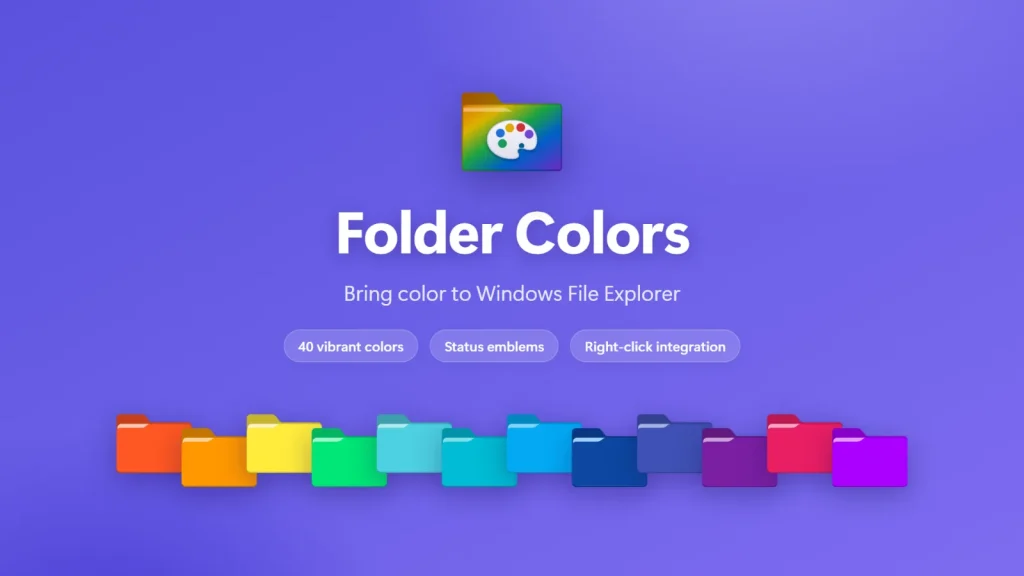
Folder Colors is a Microsoft Store app for Windows 11 and Windows 10 that adds color-coding to File Explorer’s right-click menu, so you can pick a color for any folder in one click and spot the right one at a glance. It offers 40 built-in colors, custom shades, status emblems and bulk coloring, and it is built by Muharrik Albarmajyat Establishment.

- Works offline
- No ads
- No account
- No tracking
Does Windows 11 let you change folder colors?
Not in general. Windows 11 File Explorer has no built-in way to color folders. Microsoft’s only folder color option lives inside OneDrive and applies to OneDrive-managed folders, and users report that it can disappear or be greyed out. The built-in Properties > Customize > Change Icon route changes the icon only, one folder at a time.
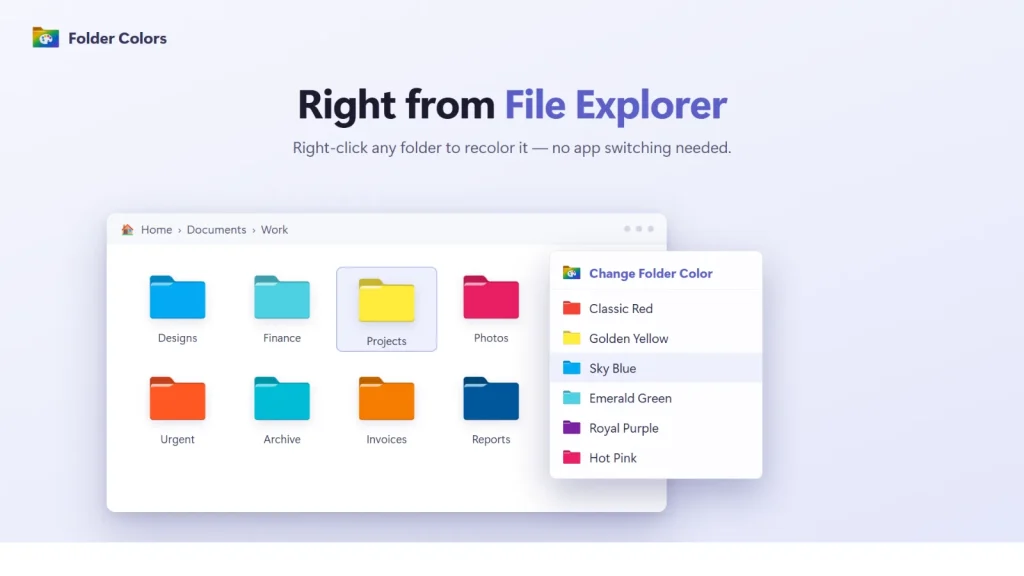
Folder Colors fills that gap. It adds a Change Folder Color command to the File Explorer right-click menu, works on any folder rather than only OneDrive ones, and handles the repetitive parts: coloring many folders at once, coloring a whole folder tree, and repairing icons that get lost after copying, moving or cloud sync.
What Folder Colors does
Every item below is a feature of the current Microsoft Store version.
40 built-in colors
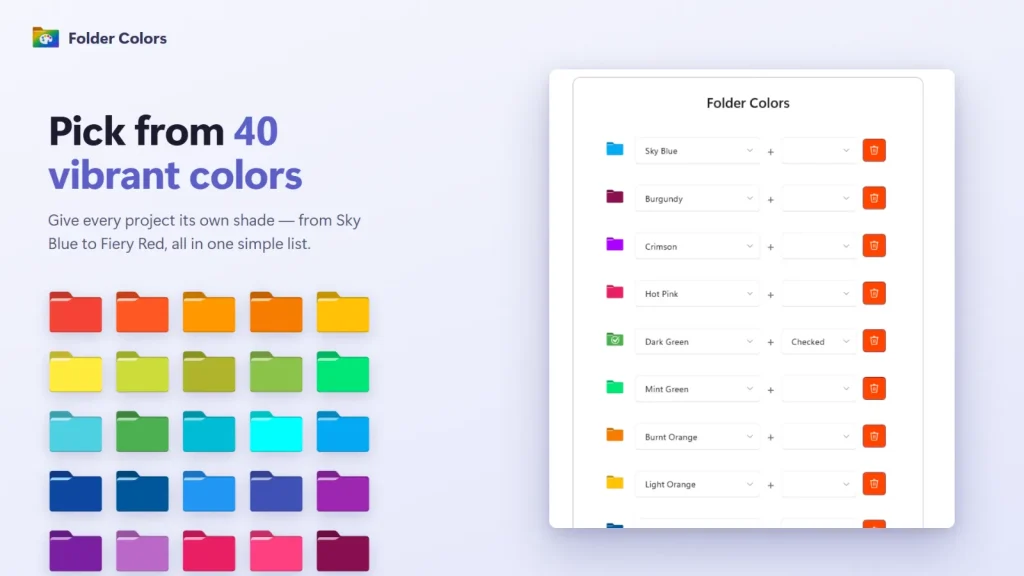
Choose from 40 folder colors, from Sky Blue to Burgundy, straight from the right-click menu in File Explorer.
Custom colors
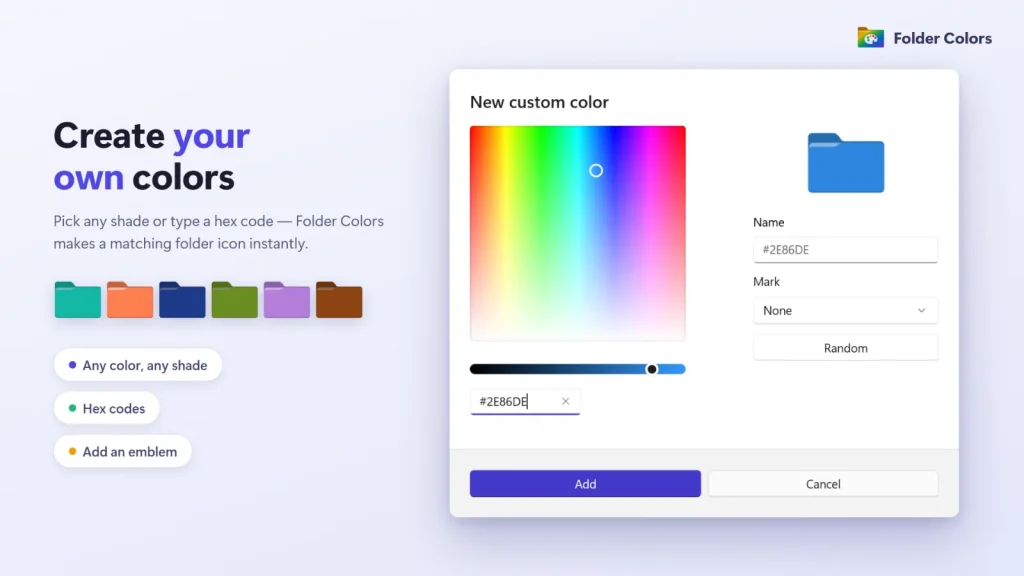
Create any shade with an HSV picker or a hex code and give it a name. A matching folder icon is generated for light and dark themes.
Status emblems
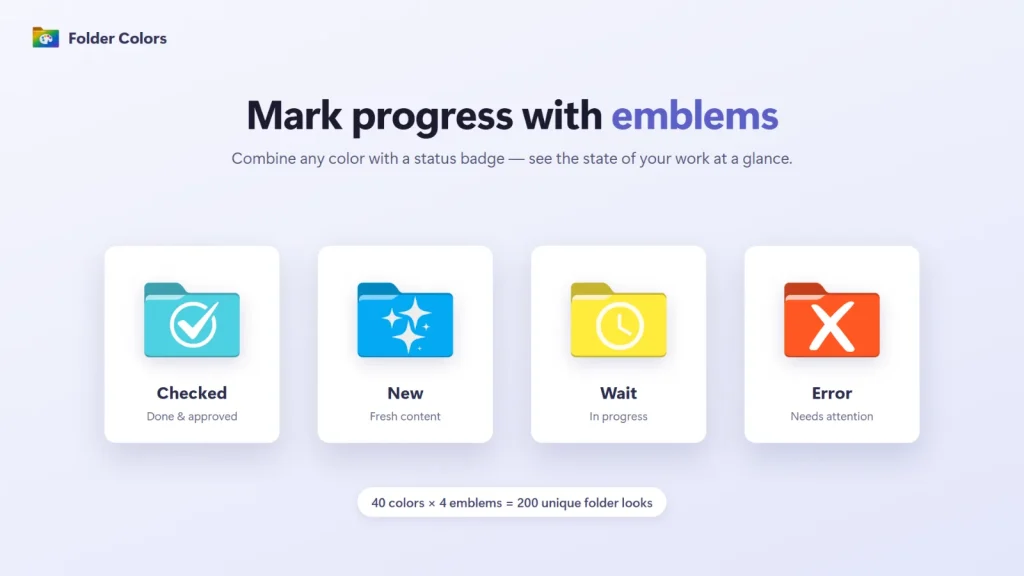
Mark progress with four emblems: Checked, New, Wait and Error. Emblems can also be used on their own, without changing the folder color.
Apply to subfolders
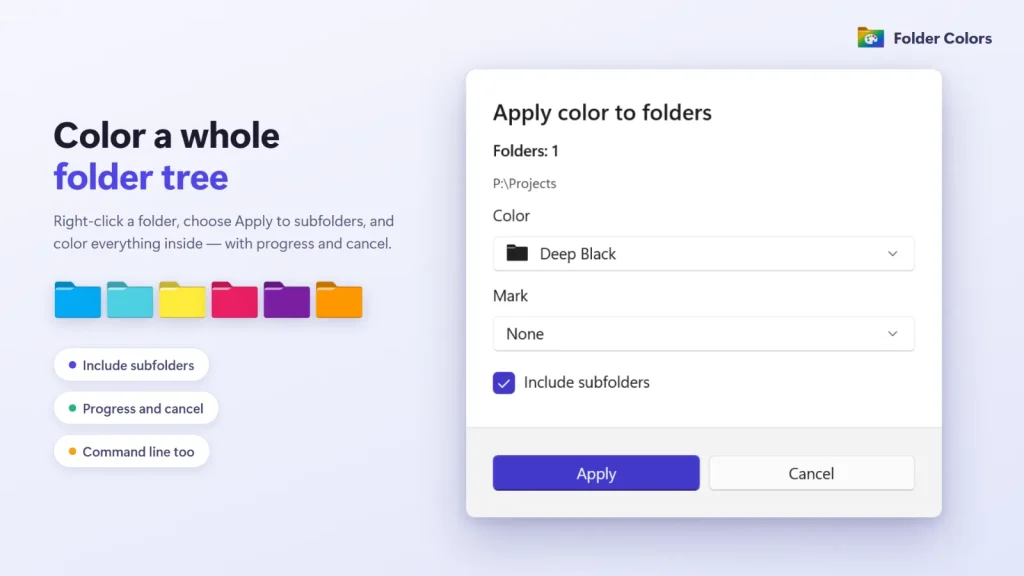
Color a whole folder tree in one action, with a progress dialog, so an entire project gets the same color.
Multi-select
Select several folders and color them at once instead of repeating the steps for each one.
New and collected folders
Right-click empty space to create an already-colored folder, or move selected files and folders into a new colored one.
My Colored Folders
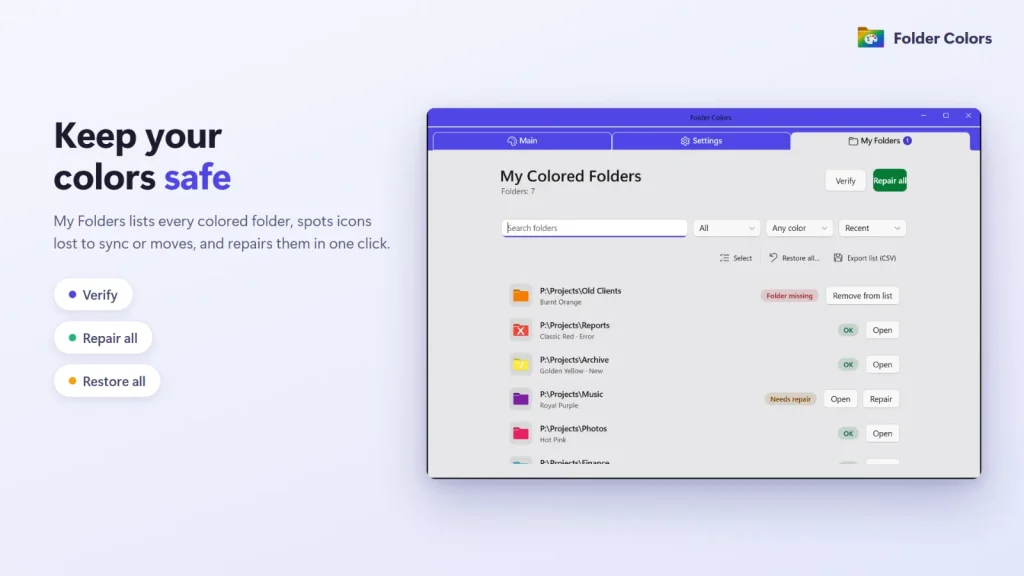
See every colored folder, search, filter and sort, then verify and repair icons lost after copying, moving or cloud sync. Restore in bulk or export a CSV.
Backup, import and command line
Export and import a JSON backup. Script changes with FolderColors.exe using –apply, –restore, –recurse, –dry-run and –quiet.
51 languages, x64 and ARM64
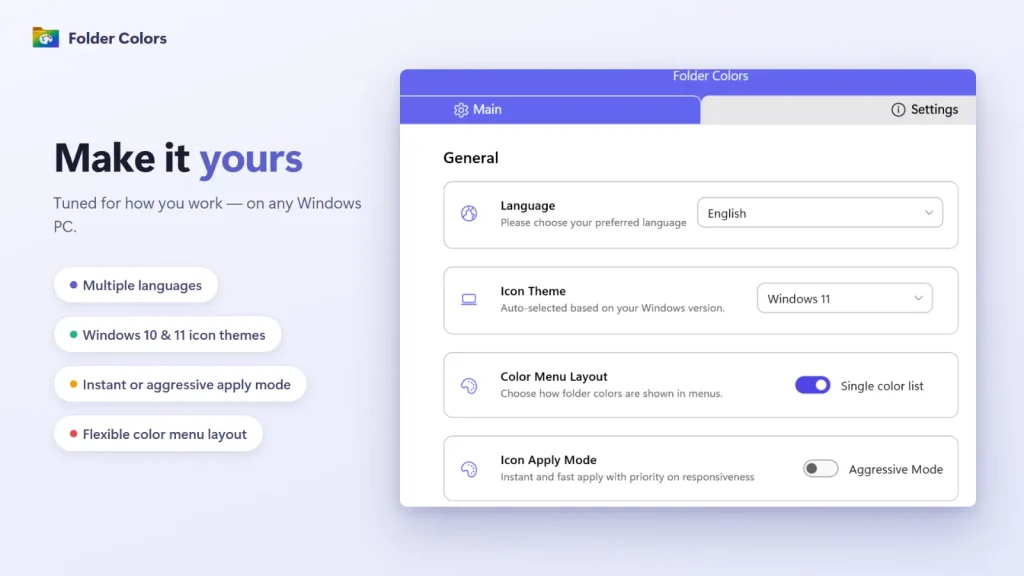
The interface supports 51 languages including right-to-left ones such as Arabic, Persian and Urdu, and the app is built for both x64 and ARM64 PCs.
You can also restore the default icon for any folder, and the original icon is brought back.
Folder Colors in use
How to color a folder in Windows 11
Install Folder Colors from the Microsoft Store, right-click a folder in File Explorer, and choose a color. There is no separate window to open and nothing to drag.
Install from the Microsoft Store
Open the Folder Colors listing with the Get it from Microsoft button on this page and install it. It runs on Windows 11 and on Windows 10 version 1809 or later, on x64 and ARM64 PCs.
Right-click a folder
In File Explorer, right-click one folder, or select several first. On Windows 11 the Folder Colors command appears in the top-level menu, so you do not need to open “Show more options”.
Choose a color
Pick one of the 40 built-in colors or a custom shade. The folder icon changes right away. To color everything inside, apply the color with the Include subfolders option.
Restore the default when you want
Choose the restore option on a folder to bring back its original icon, or use My Colored Folders to restore many folders at once.
Good to know: Folder Colors changes how a folder looks by writing the folder’s desktop.ini icon setting. Cloud services do not always sync that setting to other PCs, which is why the app includes a verify and repair tool.
Folder Colors compared with Windows and other folder color tools
A dash means we could not verify the detail, not that the feature is missing.
| Feature | Folder Colors | Windows built-in | Folder Marker | Folder Colorizer | Rainbow Folders |
|---|---|---|---|---|---|
| Price | US$14.99 on the US Store, with a free trial | Included | Free home edition; paid Home $24.95, Pro $34.95 | Freemium | Free |
| Colors any folder, not only OneDrive ones | Yes | Partial: OneDrive folders only | Yes | Yes | Yes |
| Built-in colors | 40, plus custom | — | 12 in the free edition | — | — |
| Right-click menu | Yes, in the Windows 11 top-level menu | Partial: OneDrive menu | — | Yes | — |
| Repair tool for lost icons | Yes | — | — | — | — |
| Windows versions listed | Windows 10 (1809+) and 11 | Windows 11 | Windows 7 to 11 | — | XP to 11; last update 2008 |
Sources: Folder Colors facts from the Microsoft Store listing and our own documentation; Windows behavior from Microsoft Tech Community and Windows Eleven Forum threads; Folder Marker from the vendor page (Softorino, checked 26 October 2026); Folder Colorizer from AlternativeTo; Rainbow Folders from SnapFiles (version 2.05, 5 July 2008). Prices change, so check each vendor.
Limits of Folder Colors: it is Windows only and is installed from the Microsoft Store, it is paid after the free trial, and a free tool such as Folder Marker’s free edition may be enough if you need only a few colors. Folder color changes may not sync through cloud services, because they are stored in each folder’s desktop.ini file.
Folder Colors or Folder Icon Pro?
Folder Colors is for one-click color-coding: pick a color from a list and the folder is marked. Folder Icon Pro is for turning any image into a folder icon. Choose Folder Colors if you want fast, consistent color labels, and Folder Icon Pro if you want pictures or custom artwork on your folders. Both are Windows apps from the same developer, and they can be used side by side.
Folder Colors colors folders in Windows File Explorer itself, from the right-click menu. Our file manager File Engine has its own folder colors, emblems and tags, but inside its own window. WidgetNest is a separate app that puts desktop widgets on your wallpaper.
Does Folder Colors work offline?
Yes. Folder Colors works without an internet connection and has no ads, no account and no tracking. Your folder names and locations stay on your PC. Read the full Application Privacy Policy for details, or contact us through Support.
Folder Colors frequently asked questions
Is Folder Colors free, and how much does it cost?
Folder Colors has a free trial on the Microsoft Store. The US Store price is US$14.99; prices can vary by region, so check the Store listing for your country before you buy.
Does Folder Colors work on Windows 10?
Yes. Folder Colors runs on Windows 10 version 1809 (build 17763) or later and on Windows 11. The settings include an icon theme for Windows 10 and for Windows 11. The top-level right-click entry is designed for the Windows 11 File Explorer menu.
Does Folder Colors work offline?
Yes. Folder Colors works without an internet connection. It has no ads, no account sign-in and no tracking, and your folder names and locations stay on your PC.
Does Folder Colors change my files?
No. It changes only how a folder looks. The app writes an icon setting to each colored folder’s desktop.ini file, and the files inside the folder are left as they are. Restoring a folder brings back its original icon.
What if folder colors disappear after moving, copying or syncing?
Open My Colored Folders. It lists every colored folder and lets you verify them and repair lost icons in one click. Icons can be lost when folders are copied, moved or synced by a cloud service, because the color is stored in desktop.ini.
How do I remove folder colors or uninstall Folder Colors?
To remove a color, right-click the folder and restore the default. To clear many at once, use Restore all in My Colored Folders. Do this before you uninstall, then remove the app from Windows Settings under Apps.
Does Folder Colors support ARM PCs?
Yes. The app is packaged for both x64 and ARM64 Windows PCs, so it can run on Windows on Arm devices as well as standard Intel and AMD computers.
Which languages does Folder Colors support?
The interface supports 51 languages, including right-to-left languages such as Arabic, Persian and Urdu. You can switch language inside the app without restarting it.
Folder Colors at a glance
| App | Folder Colors |
|---|---|
| Developer | Muharrik Albarmajyat Establishment, Riyadh, Saudi Arabia |
| Platform | Windows (Microsoft Store app) |
| Windows versions | Windows 10 version 1809 or later, Windows 11 |
| Architectures | x64 and ARM64 |
| Languages | 51, including right-to-left languages |
| Category | Productivity (Microsoft Store) |
| Price model | Free trial; US$14.99 on the US Microsoft Store (prices vary by region) |
| Version | 3.1.5 |
| Privacy | No ads, no account, no tracking; works offline |
| Get it | Folder Colors on the Microsoft Store |
| Page updated | November 2026 |
Give every folder a color
Install Folder Colors from the Microsoft Store and try it free. See also Folder Icon Pro, File Engine and WidgetNest.
