
Sashwork: window manager for Windows 11 with every window in its sash
Sashwork is a Windows 11 app that snaps windows into halves, quarters, thirds, sixths and ultrawide columns with a keyboard shortcut, a drag or a right-click, on one monitor or several. Design your own zone layouts, tidy a messy desktop with one click, and get your window positions back after docking or waking the PC.

- Works offline
- No ads
- No account
- No tracking
Doesn’t Windows 11 already snap windows?
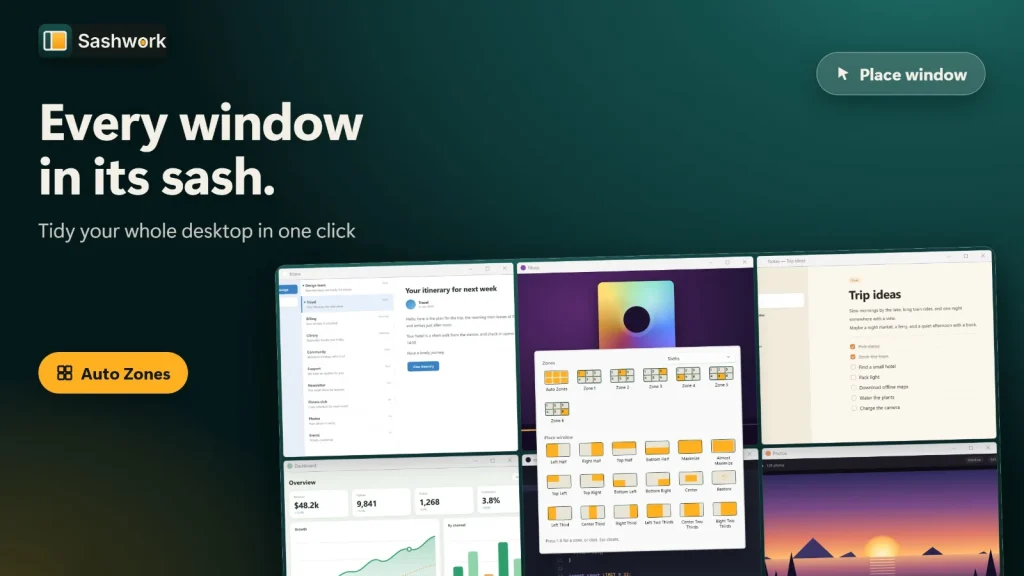
Yes. Windows 11 has built-in Snap layouts and Snap assist: Win+Arrow snaps a window, Win+Z opens a layout flyout, and dragging a window to an edge or the top of the screen offers predetermined layouts you can group in Alt+Tab and the taskbar. Sashwork adds what that built-in set does not describe: more layouts, your own zones, and memory.
More layouts
Halves, quarters, thirds, two-thirds, sixths and ultrawide columns (25/50/25 and 20/60/20), each on its own shortcut.
Your own zones
Draw custom layouts with up to 32 zones, one layout per display, and let Auto Zones fill them for you.
It remembers
Display Memory restores window positions after you dock, undock, change resolution or wake the PC. App rules and profiles do the rest.
How does Sashwork snap and arrange windows?
Sashwork runs from the tray and gives you four ways to place a window: a shortcut, the Quick Menu, a drag to a zone, or a right-click. All of them use the same layouts.
Quick Menu from the tray
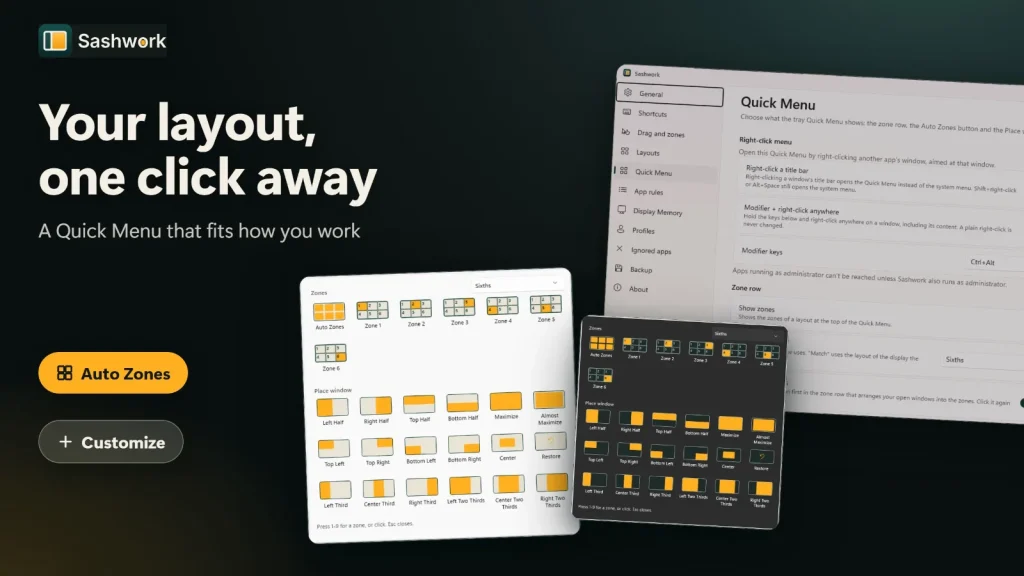
Left-click the tray icon to open the Quick Menu: a row of zones, an Auto Zones cell and a “Place window” grid that acts on the window you used last. It starts with 18 actions, holds up to 36, and you can reorder, add or remove them.
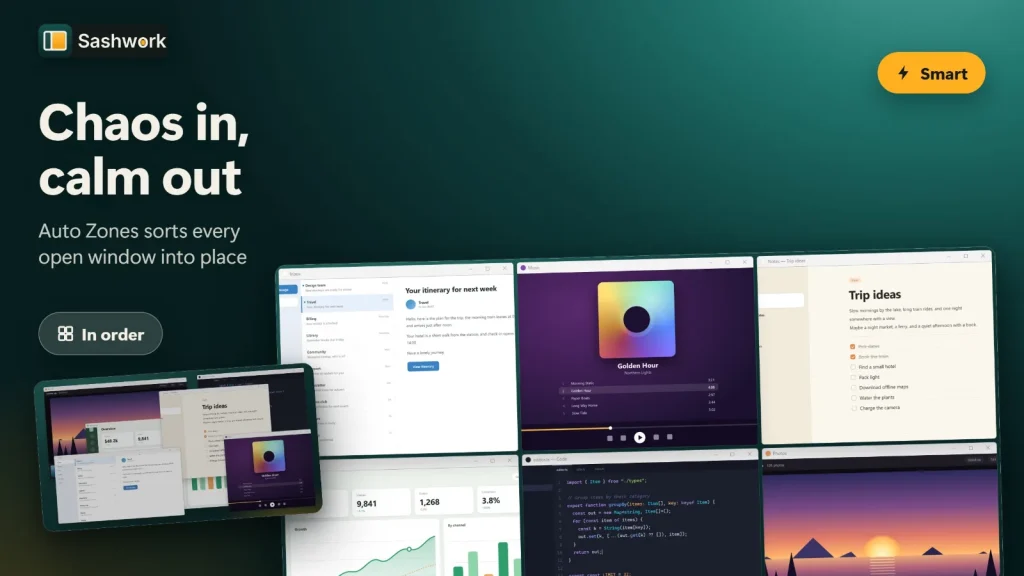
Auto Zones tidy a messy desktop
One click arranges every open window on the display into the zones of your layout. Smart mode remembers which zone each app belongs in; In order mode puts the top window in zone 1. Click again when nothing would change and every window goes back where it was.
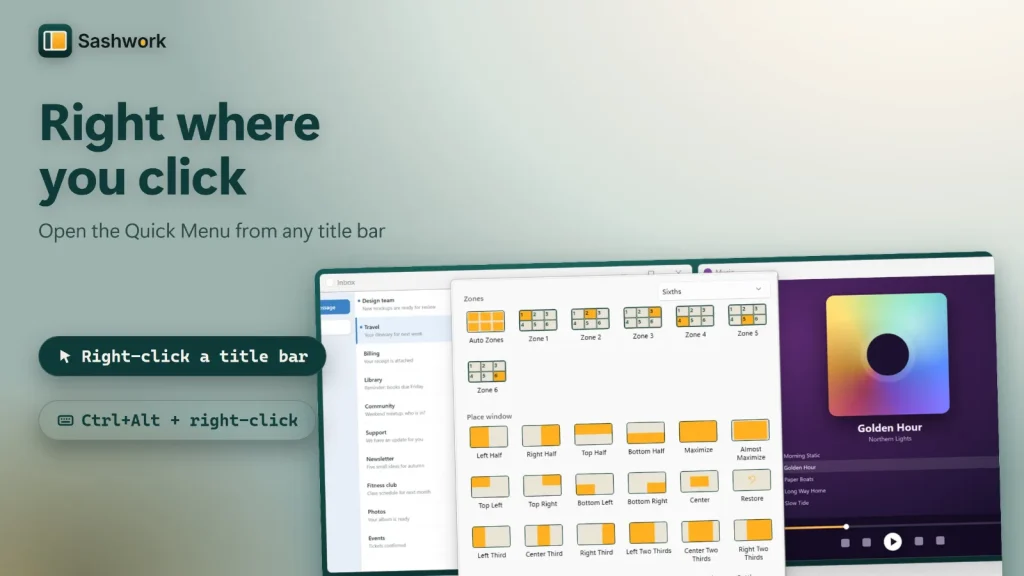
Right-click menu on the title bar
Turn on the right-click menu (it is off by default) and right-clicking a window’s title bar opens the Quick Menu at the cursor. Prefer to keep the system menu? Shift+right-click or Alt+Space still opens it. You can also use a modifier plus right-click anywhere in the window.
Drag a window to a zone
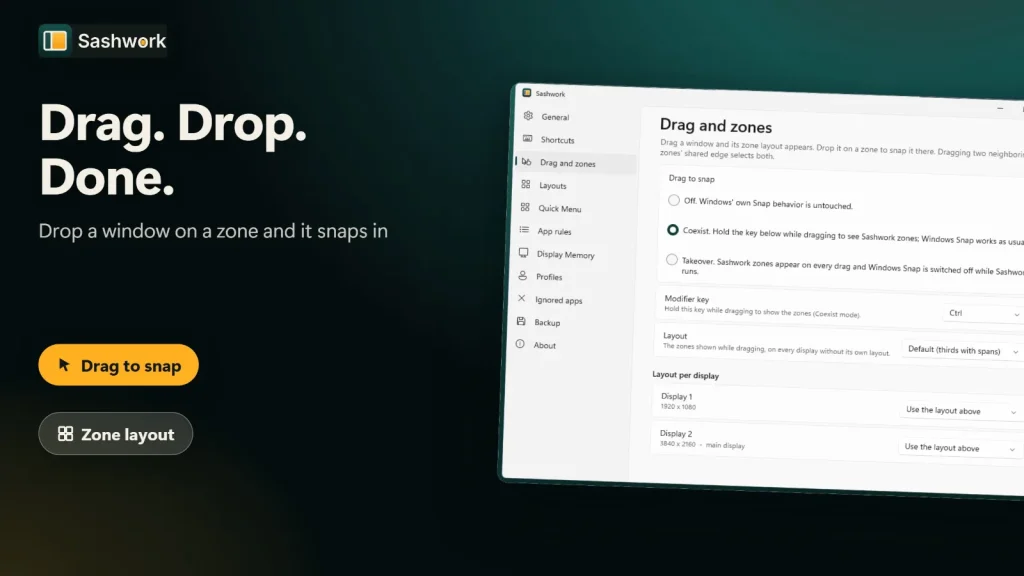
Drag a window and your layout appears; drop to snap, or drag across a shared edge to fill two zones. Coexist mode (hold Ctrl, Shift or Alt) keeps Windows Snap working alongside; Takeover replaces Windows Snap while Sashwork runs. Each display can have its own layout.
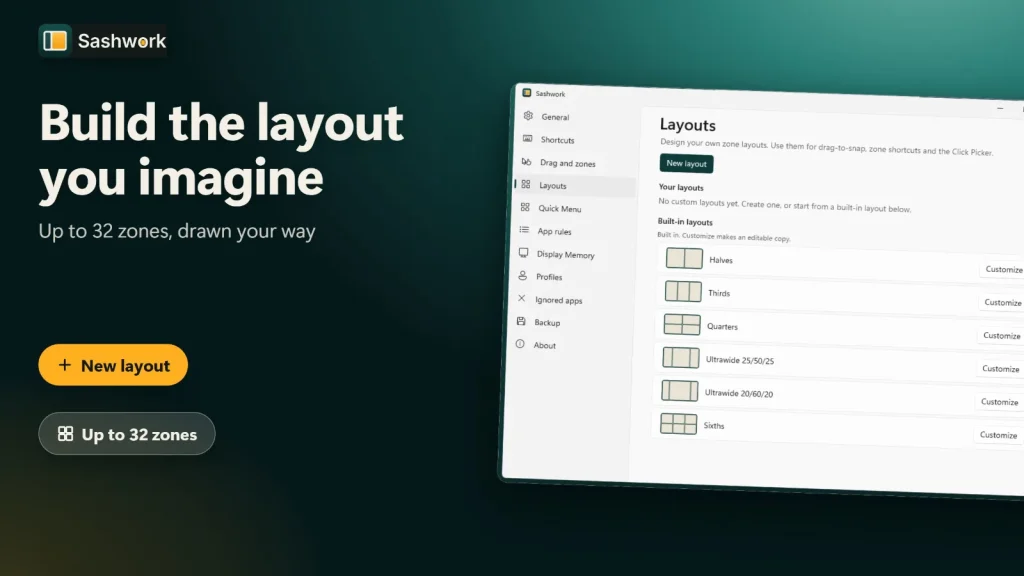
Custom zone layouts
Start from Halves, Thirds, Quarters, Sixths or the two ultrawide layouts and edit a copy, or build your own with up to 32 zones. Split, add and delete zones; edges snap to a 24-step grid and to neighbouring zones.
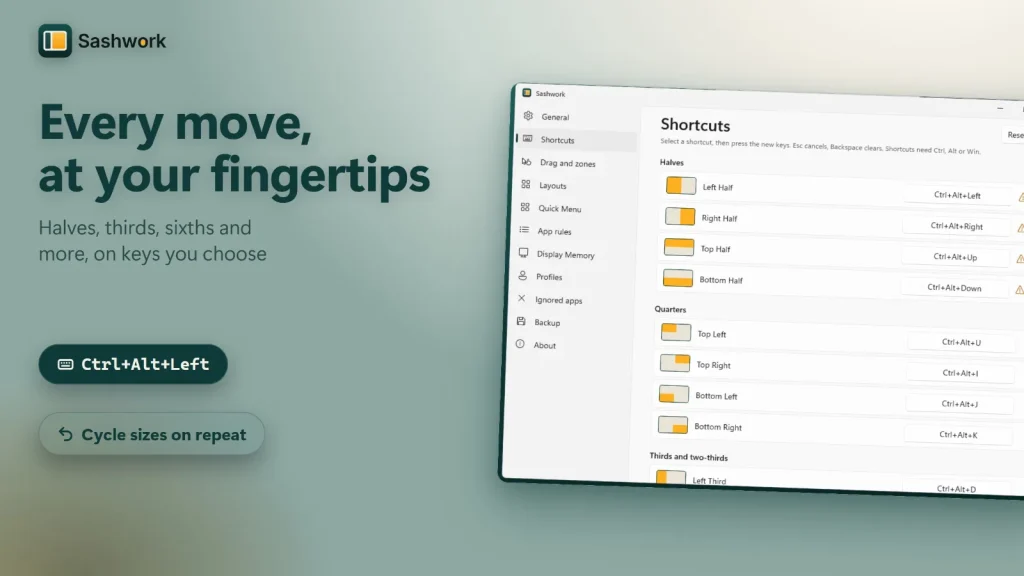
Shortcuts you can remap
About 70 actions are ready for shortcuts, and every default can be remapped. Conflicts are flagged, and shortcuts must include Ctrl, Alt or Win. Press a half shortcut again to cycle one half, two thirds and one third.
Display Memory
Snapshots window positions per display setup and restores them after dock or undock, resolution change, sleep, unlock or an RDP reconnect. Undo is in the tray menu.
App rules & ignored apps
Place a program on a chosen display or zone when it opens, match by program and optional title text, or tell Sashwork to leave an app alone.
Profiles & backup
Save shortcuts, drag settings, rules and per-display layouts as profiles, and export or import your settings as a file.
Multi-monitor
Send a window to the next or previous display, or to display 1 to 9, and keep a separate layout on each screen.
Gaps & sizing
Set a 0 to 64 px gap between windows and screen edges, centre, maximize, nudge or make windows larger or smaller.
22 languages
The interface is available in 22 languages, including Arabic with full right-to-left layout, with light, dark or system theme.
Which keyboard shortcuts does Sashwork use?
These are the default shortcuts; all can be remapped in Settings. Some graphics drivers also use Ctrl+Alt+Arrow to rotate the screen, and Sashwork warns you in the app if that applies.
| Halves (left, right, top, bottom) | Ctrl+Alt+Arrow |
|---|---|
| Quarters (corners) | Ctrl+Alt+U Ctrl+Alt+I Ctrl+Alt+J Ctrl+Alt+K |
| Thirds (left, centre, right) | Ctrl+Alt+D Ctrl+Alt+F Ctrl+Alt+G |
| Two-thirds (left, centre, right) | Ctrl+Alt+E Ctrl+Alt+R Ctrl+Alt+T |
| Maximize | Ctrl+Alt+Enter |
| Almost maximize | Ctrl+Alt+Shift+Enter |
| Center | Ctrl+Alt+C |
| Restore | Ctrl+Alt+Backspace |
| Larger or smaller | Ctrl+Alt+Plus Ctrl+Alt+Minus |
| Next or previous display | Ctrl+Alt+Shift+Right Ctrl+Alt+Shift+Left |
| Maximize height | Ctrl+Alt+Shift+Up |
| Show the picker | Ctrl+Alt+Space |
How do I snap windows with Sashwork?
Install Sashwork from the Microsoft Store, press a shortcut on any window, and the window snaps into place. A Welcome window lets you try each shortcut straight away.
Install from the Microsoft Store
Open the Sashwork page on a Windows 11 PC and choose Free trial or Get.
Try the shortcuts
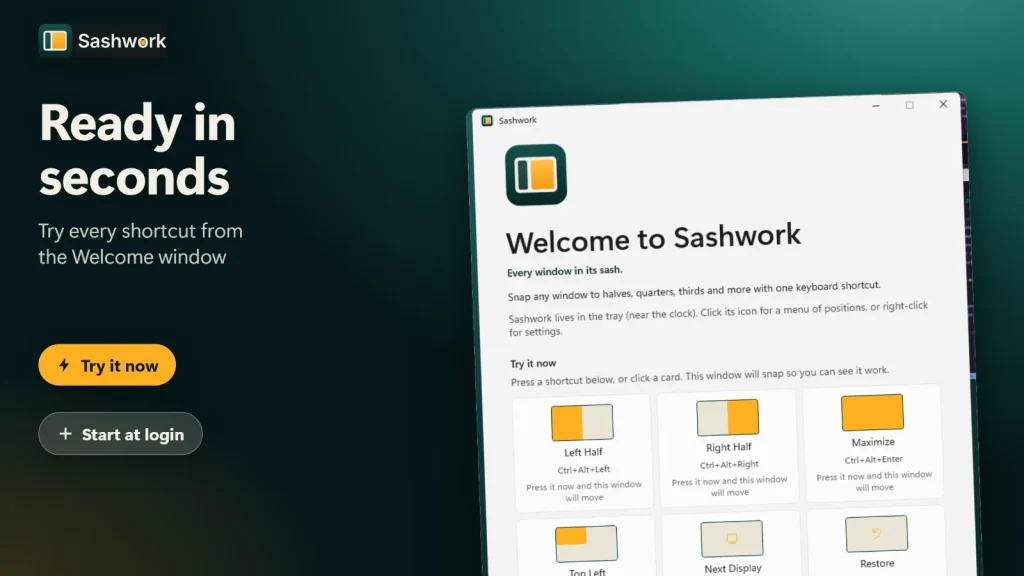
The Welcome window has “Try it now” cards. Press Ctrl+Alt+Left on any window to snap it to the left half.
Pick or build a layout
Choose a built-in layout in Settings, or draw your own with up to 32 zones, and set one per display.
Use the Quick Menu, drag or right-click
Click the tray icon, drag a window to a zone, or turn on the right-click menu for the way you like to work.
Let Auto Zones and Display Memory help
Click Auto Zones to arrange open windows into your layout, and click again to put them back. Display Memory restores positions after docking or waking.
Start with the Welcome window
On first run, Sashwork shows a Welcome window with cards for the most useful shortcuts, so you can try a snap before you open Settings.
Sashwork vs Windows Snap, FancyZones, DisplayFusion, AquaSnap and FancyWM
A fair look at window-management options for Windows. Cells show only what we could verify from the sources below; a dash means we did not verify it.
| Sashwork | Windows 11 Snap | PowerToys FancyZones | DisplayFusion Pro | AquaSnap | FancyWM | |
|---|---|---|---|---|---|---|
| Price | US$4.99 one-time (US store), free trial | Included with Windows | Free, open source (MIT) | US$49 one-time personal licence | Free for personal use; Standard US$29 per computer | Free, open source |
| Approach | Snapping, custom zones, Auto Zones | Predetermined snap layouts and groups | Custom zone layouts | Multi-monitor suite including snapping | Docking, snapping, stretching, tiling | Dynamic tiling |
| Custom zone layouts | Yes — up to 32 zones | No — predetermined layouts | Yes — grid or canvas editor | — | — | — |
| Ultrawide column layouts | Yes — 25/50/25 and 20/60/20 | — | — | — | — | — |
| Drag to zones | Yes — Coexist or Takeover mode | Drag to edges, corners or the top bar | Hold Shift while dragging by default | — | — | — |
| Restores window positions after display changes | Yes — Display Memory | — | No — per the Microsoft FAQ, snapped layouts are not restored | — | — | — |
| Windows versions | Windows 11 | Windows 11 | — | — | — | — |
Sources, checked 21 November 2026: Microsoft support (Snap your windows), Microsoft Learn (PowerToys FancyZones) and the PowerToys GitHub repository, displayfusion.com (Personal purchase page), nurgo-software.com (AquaSnap pricing) and AlternativeTo (FancyWM). Prices change; check each vendor.
Honest limits: Sashwork is for Windows 11 only. It is new (version 1.0, released 15 November 2026) and has no ratings or reviews yet. It cannot move windows of apps running as administrator unless Sashwork also runs as administrator, it does not tile windows automatically, and the right-click menu and Takeover mode are off by default.
Which of our apps do I need?
Each app solves one job on Windows. Pick the one that matches yours; they work independently.
Sashwork
You want to snap windows into halves, thirds, sixths or custom zones. You are here.
Folder Colors
You want to colour-code folders from the File Explorer right-click menu.
Folder Icon Pro
You want to turn any image into a folder icon.
File Engine
You want a File Explorer alternative with a faster way to manage files.
WidgetNest
You want desktop widgets and themes that match your wallpaper.
Does Sashwork work offline?
Yes. Sashwork works offline. No account, no ads, no tracking and no telemetry; its own code never connects to the internet.
Settings and remembered window positions are stored locally on your PC. After about a week of regular use, Windows itself may show its own Store “Rate and review” dialog a few times at most, months apart; that is a Windows dialog, not Sashwork code. See the Application Privacy Policy for the full details, or contact support.
Sashwork questions
How much does Sashwork cost?
Sashwork costs US$4.99 once in the US Microsoft Store (prices vary by region) and includes a free trial. It is a one-time purchase with no subscription and no in-app purchases.
Does Sashwork run on Windows 10?
No. Sashwork is built for Windows 11 only, so we recommend it only for Windows 11 PCs.
How many devices can I install it on?
You can install Sashwork on up to 10 Windows devices signed in to your Microsoft account.
Does it work with ultrawide and multiple monitors?
Yes. Sashwork has ultrawide column layouts (25/50/25 and 20/60/20), can send windows to the next or previous display or to displays 1 to 9, and keeps a separate layout per display.
How is Sashwork different from PowerToys FancyZones?
Both support custom zones. By default FancyZones needs Shift held while dragging, and Microsoft’s FAQ says it does not restore snapped layouts. Sashwork adds keyboard snapping, a tray Quick Menu, Auto Zones with one-click undo and Display Memory. FancyZones is free and open source; Sashwork is US$4.99 once.
Does Sashwork work offline, and is my data private?
Yes. It works offline with no account, ads or tracking, and its own code never connects to the internet. Settings stay on your PC.
Does Sashwork support Arabic?
Yes. Sashwork is available in 22 languages, including Arabic with full right-to-left layout.
Does it start with Windows?
Only if you want it to. Start at login is optional and off by default; you can turn it on in Settings, and hide the tray icon if you prefer.
Can it move windows of apps run as administrator?
Not unless Sashwork also runs as administrator. Remote desktop and virtual machine clients are on the default ignore list.
How do I uninstall Sashwork?
Uninstall it like any Microsoft Store app, from Settings, Apps. Your layouts and settings are stored locally on your PC.
Sashwork at a glance
| Developer | Muharrik Albarmajyat Establishment, Riyadh, Saudi Arabia |
|---|---|
| Category | Productivity |
| Platform | Windows 11 (Microsoft Store) |
| Version | 1.0 (released 15 November 2026) |
| Price | US$4.99 one-time (US store; prices vary by region), with a free trial |
| Devices | Up to 10 |
| Languages | 22, including Arabic with right-to-left layout |
| Age rating | Everyone |
| Size | About 1.4 MB |
| Internet | Not required |
| Privacy | No account, no ads, no tracking. See the Application Privacy Policy |
| Get it | Microsoft Store |
| Page updated | November 2026 |
