
How to Add Widgets to Your Windows 11 Desktop
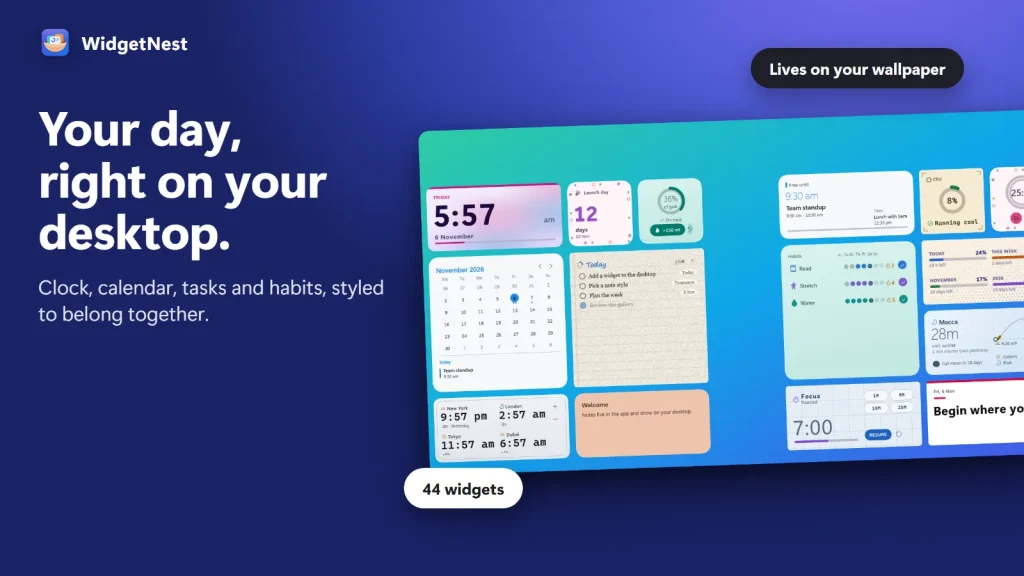
Short answer: Windows 11 has a built-in Widgets board that opens with Win + W. Its widgets live in that panel, not on your wallpaper. To place a clock, calendar, to-do list or system monitor directly on the desktop, use a desktop widget app such as WidgetNest, which has 44 widgets and themes.
People often search for “widgets on the Windows 11 desktop” and end up on the Widgets board, which slides in from the left side of the screen and hides again. That is useful for a quick glance, but it is not the same as having a clock or to-do list sitting on your wallpaper. Here is how both options work.
Method 1: Use the Windows 11 Widgets board (built in)
The Widgets board is part of Windows 11. Microsoft’s support page describes it as a board you open on demand; it does not describe placing these widgets on the desktop itself.
Open the board
Press Win + W, select the Widgets area on the taskbar, or swipe in from the left edge on a touch screen.
Add a widget
Select the plus (+) button to open the widget picker, then choose a widget. More widgets are available from the Widgets page in the Microsoft Store.
Resize or customize
Select the More options (…) button in the widget’s corner, then choose a size (Small, Medium or Large, where offered) or Customize widget.
Rearrange
Drag a widget by its header to a new position in the pinned section.
Remove a widget
Select More options (…) and choose Remove widget.
Menu wording and available widgets can differ between Windows 11 builds and regions.
Turn off the news feed in the Widgets board
If the board shows a news feed you do not want, you can hide it.
Open the board settings
Press Win + W and select the settings gear.
Hide the feed
Turn off the Discover feed (in newer builds, choose Show or hide feeds and switch the feed off, then confirm).
Optional: remove the taskbar button
Open Settings > Personalization > Taskbar and set Widgets to Off. Win + W still opens the board.
Windows Latest reported in May 2026 that Microsoft was testing a quieter default for the board, with the news feed off at first launch, in Insider builds. Whether you see it depends on your Windows build.
Method 2: Add desktop widgets with WidgetNest
WidgetNest is a Windows 11 and Windows 10 app that places widgets directly on your desktop. According to its Microsoft Store listing it includes 44 widgets, such as Clock, World Clock, Calendar, Todo, Reminders, Habits, Pomodoro, and CPU, Memory and Network monitors. It is a paid app with a free trial.
Install and start the trial
Get WidgetNest from the Microsoft Store and open it. It runs from the system tray.
Add widgets from the gallery
Open the widget gallery and add a widget in one click. Each widget comes in several sizes and styles.
Place and resize
Drag a widget where you want it on the desktop, right-click it to edit, and switch between its sizes. Widgets sit on the desktop layer behind your open windows.
Pick a theme
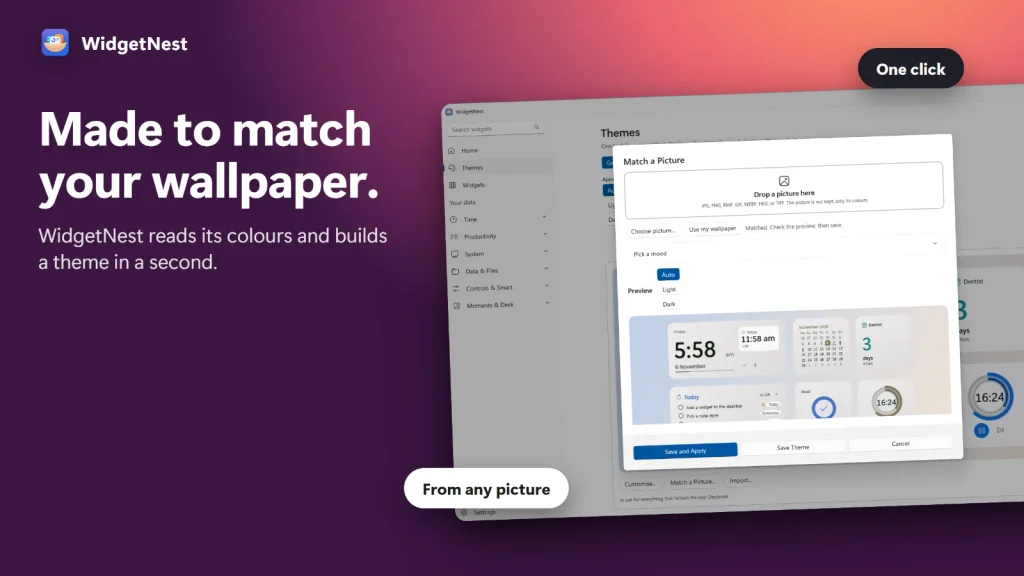
Choose one of the 18 themes and every widget follows it, in light or dark. Theme schedules can switch looks by time of day.
Match your wallpaper
Use Match a Picture to build a theme from your wallpaper or any photo, or fine-tune colour, background and type in Theme Studio with a live preview.
Back up your setup
Back up everything to a single file so your setup can be restored later.
WidgetNest has no account and no ads. The app released on 6 November 2026 and has no ratings yet.
Widgets board vs. desktop widgets
| Need | Windows Widgets board | WidgetNest |
|---|---|---|
| Widgets on the desktop wallpaper | No | Yes |
| Themes and match-a-picture | No | Yes |
| Price | Included in Windows | Paid, free trial |
Tips
Tips: Start with three or four widgets, such as a clock, calendar and to-do list, so the desktop stays readable. Pick the theme before you tweak individual widgets.
Troubleshooting
- Win + W does nothing. Check Settings > Personalization > Taskbar for the Widgets option, and update Windows.
- The board still shows news. Open the board settings and turn the feed off as described above; wording differs between builds.
- Desktop widgets are hidden behind windows. That is by design for WidgetNest: they sit on the desktop layer. Bring them to the front from the tray, then send them back.
FAQ
How do I open widgets in Windows 11?
Press Win + W, or select the Widgets area on the taskbar. The board opens as a panel. Use the plus button to add widgets from the picker.
Can I put Windows 11 widgets on the desktop?
Microsoft’s support page describes the Widgets board only, not widgets placed on the desktop. A desktop widget app such as WidgetNest places widgets directly on the wallpaper.
How do I turn off the Widgets feed?
Open the board, select the settings gear and turn the Discover feed off. To remove the taskbar button, set Widgets to Off in Settings > Personalization > Taskbar.
Does WidgetNest need an internet connection?
No. WidgetNest works offline. Installing it from the Microsoft Store needs an internet connection, as with any Store app.
WidgetNest
44 themed desktop widgets for Windows 11 and 10. No account, no ads. Free trial.
