
How to Use Tabs and Split View for Files in Windows 11
Short answer: File Explorer in Windows 11 has built-in tabs: press Ctrl + T for a new tab and Ctrl + W to close it. It has no built-in split view, so for two folders side by side, snap two Explorer windows with Win + Left and Win + Right, or use a file manager with real split panes, such as File Engine.
If you move files between folders all day, opening a new Explorer window each time gets old fast. Windows 11 gives you tabs, and it can put two windows next to each other, but it does not give you one window with two folder panes. This guide shows what the built-in tools do, where they stop, and how a dual-pane file manager fills the gap.
Method 1: Use tabs in File Explorer (built in)
Tabs arrived in File Explorer with the Windows 11 version 22H2 feature update released in October 2022, so any up-to-date Windows 11 PC has them. No setting needs to be turned on.
Open File Explorer
Press Win + E. The tab strip appears at the top of the window.
Open a new tab
Press Ctrl + T or select the plus (+) button next to the last tab.
Open a folder in its own tab
Middle-click a folder, or right-click it and choose Open in new tab.
Switch between tabs
Press Ctrl + Tab to cycle, or Ctrl + 3 to jump to the third tab.
Close a tab
Press Ctrl + W or select the x on the tab.
Move a tab to its own window
Drag the tab out of the strip and drop it on the desktop.
Method 1b: Put two folders side by side with Snap
File Explorer has no built-in dual-pane or split view. The usual workaround is two Explorer windows snapped next to each other.
Open two Explorer windows
Press Win + E twice, or drag a tab out into its own window.
Snap the first window
Select it and press Win + Left. It fills the left half of the screen.
Snap the second window
Select the other window and press Win + Right. You can also hover the maximize button to pick a Snap layout.
Drag files across
Drag from one window to the other. Hold Ctrl to copy instead of move.
This works, but each window has its own tabs, size and position, and you arrange them again every session.
Method 2: Use split view with File Engine
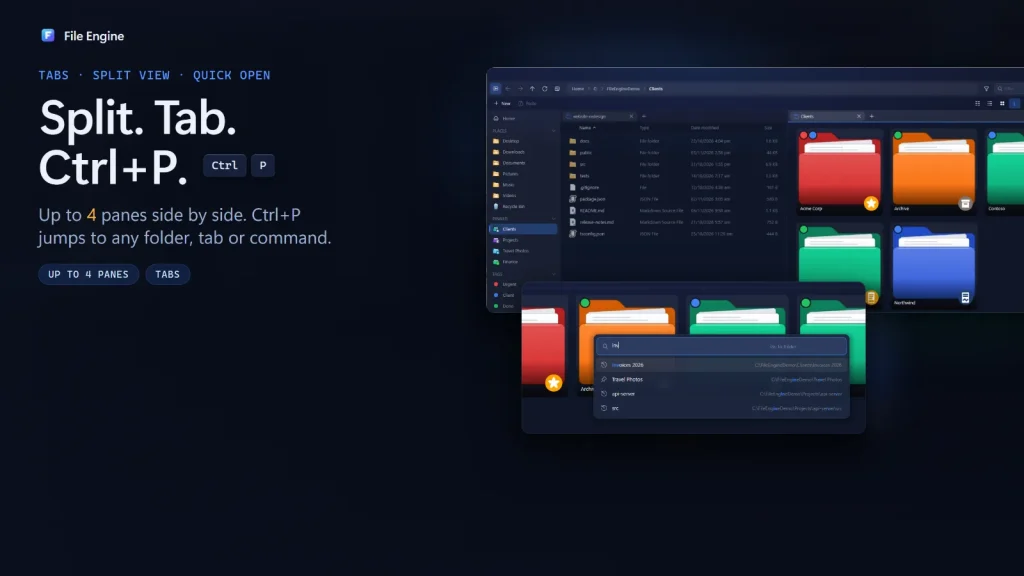
File Engine is a file manager for Windows 11 and Windows 10 that puts tabs and split view in one window. Per its Microsoft Store listing, it supports up to four panes. It is a paid app with a free trial, so try it on your own folders before buying.
Install File Engine
Get it from the Microsoft Store and start the free trial.
Split the window
Drag a tab to the side of the window. A drop guide shows where the new pane will go. Repeat for up to four panes, or keep one pane if you prefer a single window.
Jump anywhere with Quick Open
Press Ctrl + P and type a folder, tab or command name instead of clicking through the tree.
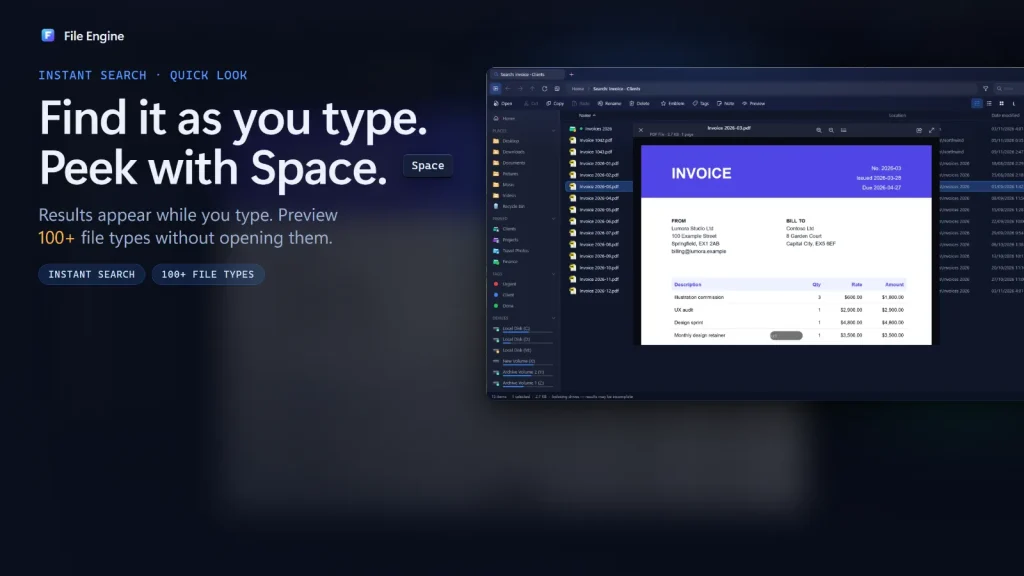
Find and preview files
Search as you type in a folder, a drive or all drives. Select a file and press Space for Quick Look.
Copy between panes and undo
Drag files between panes. Copies run in a background queue, and Ctrl + Z undoes moves, copies, renames and deletes.
Open archives like folders
ZIP, 7z, RAR and TAR archives open as normal folders, so you can copy from an archive into the other pane.
File Engine is version 1.0 (released 10 November 2026) and has no ratings yet. It is Windows only, and its interface is not available in Arabic yet.
Which should you use?
| Need | Explorer tabs | Explorer + Snap | File Engine |
|---|---|---|---|
| Several folders in one window | Yes | Partial | Yes |
| Two or more folders visible together | No | Yes | Yes |
| Layout kept in one window | Yes | No | Yes |
| Price | Included in Windows | Included in Windows | Paid, free trial |
Tips
Tips: Use Ctrl + Shift + T in File Engine to reopen a closed tab. On a small screen, two panes are usually more readable than four. If you only need one extra view now and then, built-in tabs may be all you need.
Troubleshooting
- No tab strip in Explorer. Tabs need Windows 11 22H2 or later. Run Windows Update, then reopen Explorer.
- Win + Left or Right does nothing. Check that Snap is on in Settings > System > Multitasking.
- Win + E should open File Engine? File Engine can be set as the default folder app, but that is optional; leave it off if you want Explorer to stay the default.
FAQ
Does Windows 11 File Explorer have tabs?
Yes. Tabs were added in the Windows 11 22H2 update in October 2022. Press Ctrl + T to open a tab, Ctrl + W to close it and Ctrl + Tab to switch.
Does Windows 11 File Explorer have split view or dual pane?
No. Explorer shows one folder per tab. To see two folders at once, snap two windows side by side with Win + Left and Win + Right, or use a dual-pane file manager.
How many panes does File Engine support?
Up to four, according to its Microsoft Store listing. You drag a tab to the side of the window to create a pane.
Is File Engine free?
It has a free trial and then costs US$14.99 one-time on the US Microsoft Store. Prices vary by region.

File Engine
A tabbed file manager for Windows 11 and 10 with split view, Quick Open and instant search. No account, no ads, no tracking.
